Gevoo

22 topics · 5 groups

Features & user guide

From rotating your first model to making a drawing reference of your own. Browse by topic or search for the tool you need.

Based on the V1.0 user manual, with current App demonstrations. Full phone screenshots show the Chinese interface; controls and available content may vary by version.

Your first reference

  1. Choose a model in Form and rotate it into position.
  2. Adjust lighting, then simplify the large light and shadow shapes.
  3. Set the angle, add annotations and export a drawing reference.

Learn, Form and Workshop bring together lessons, single-model studies and multi-object compositions.

  1. Tap a tab at the top or swipe between pages. An orange underline marks the current page.
  2. Drag with one finger to rotate. Pinch with two fingers to zoom, or drag both fingers together to pan.
  3. The Form toolbar contains View, Lighting, Render, Annotate and Export. Open the three-dot menu for more options.

Set the main viewing angle before adjusting the light. The model stays at that angle when you release it.
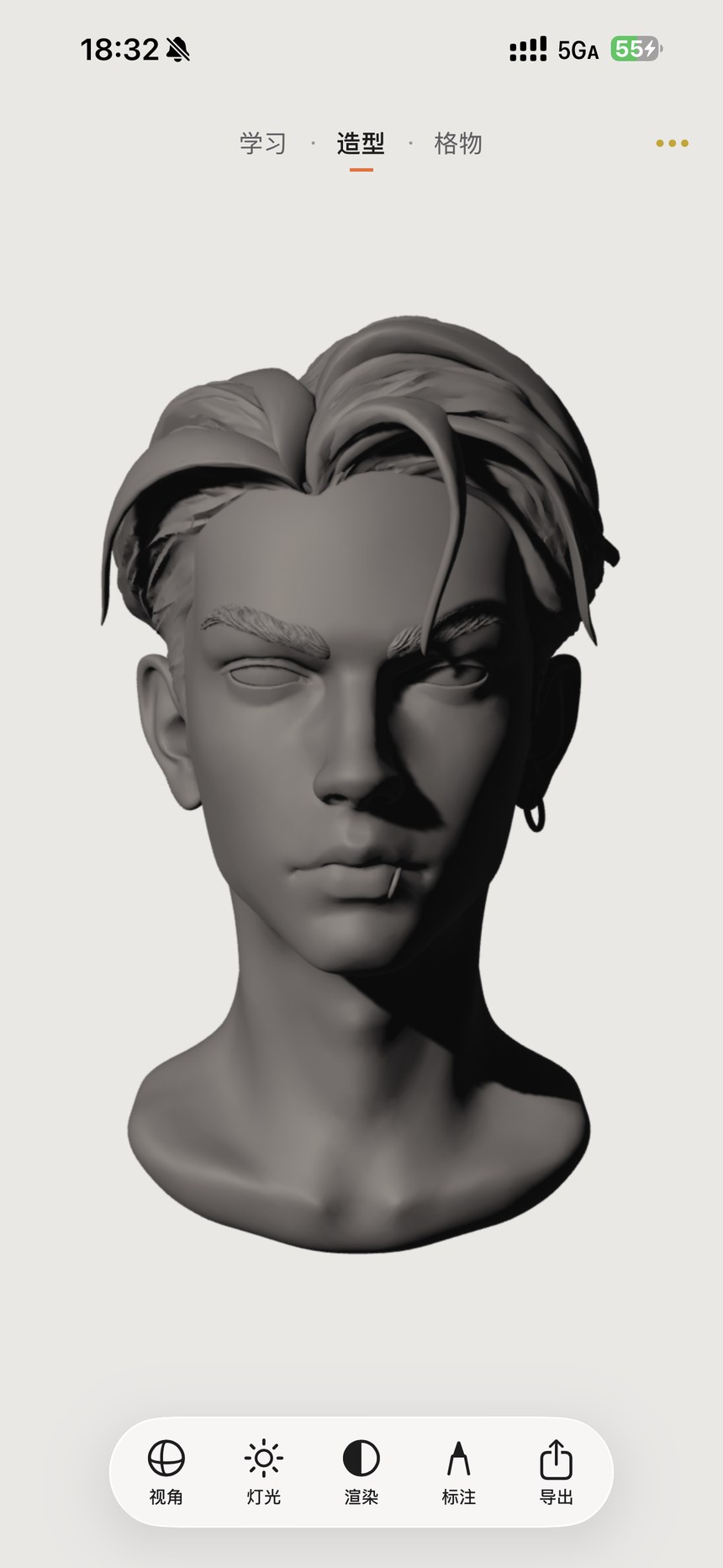
Find your way around & use gestures · Figure 1 — Chinese App interfaceEnlarge screenshot ↗
Find your way around & use gestures · Figure 1

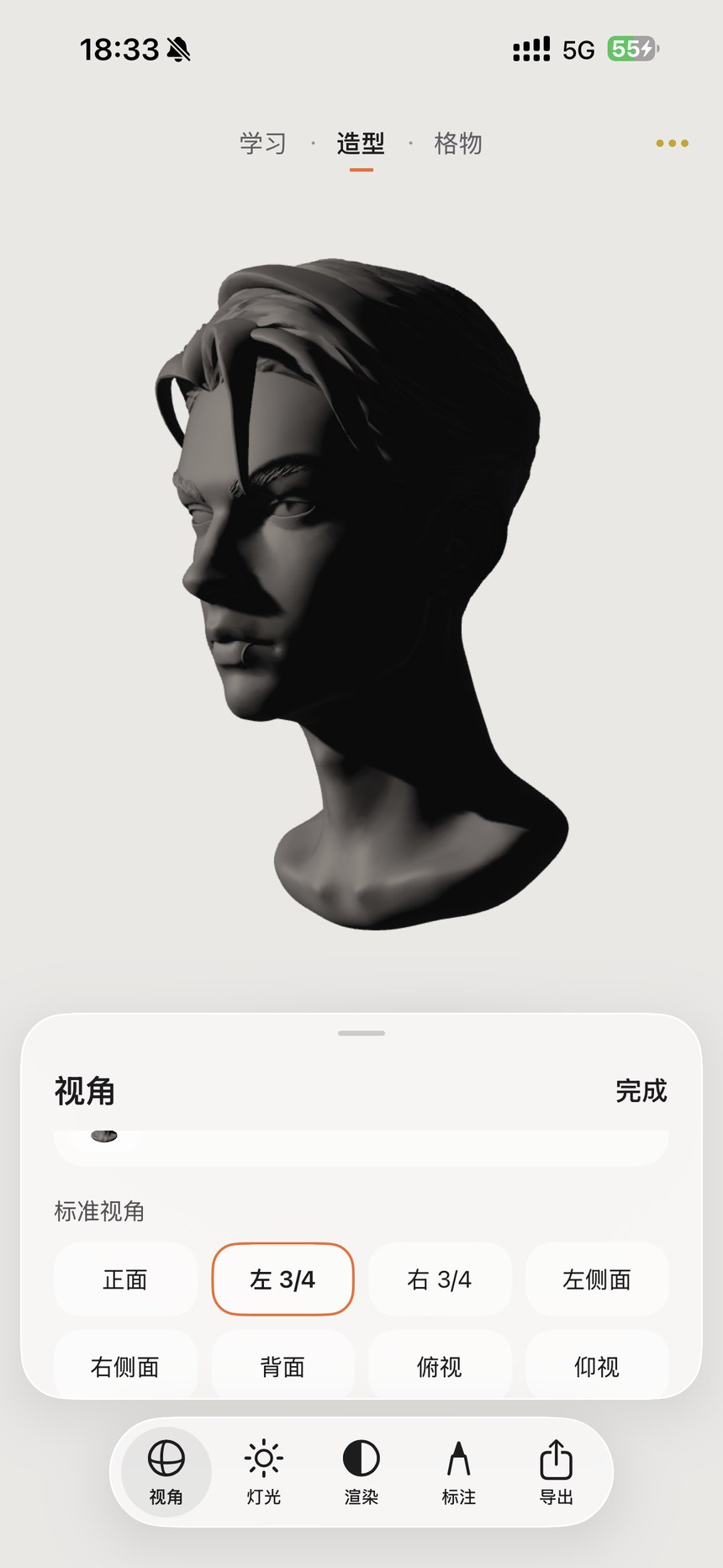
Compare front, profile and three-quarter views precisely, then explore how perspective changes.

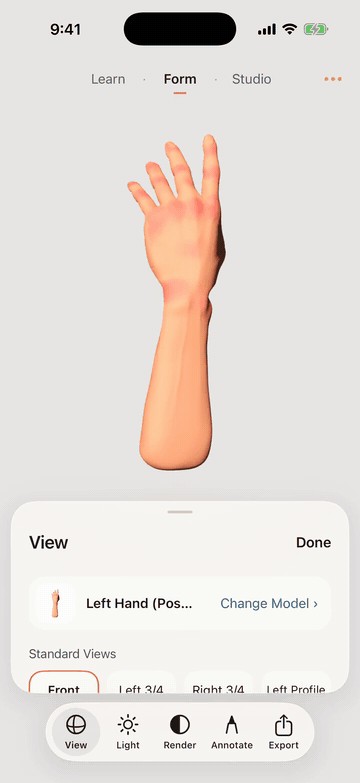
  1. Open View and choose front, left/right three-quarter, left/right profile, back, top or bottom.
  2. Fine-tune with gestures after choosing a view. Tap Done to close the panel.
  3. Move the 18–135 mm focal-length slider, or choose 24, 35, 50, 85 or 135 mm to compare perspective.

Shorter focal lengths exaggerate near–far size differences; longer focal lengths flatten perspective.

Standard views & 18–135 mm focal length · Figure 2 — Chinese App interfaceEnlarge screenshot ↗
Standard views & 18–135 mm focal length · Figure 2

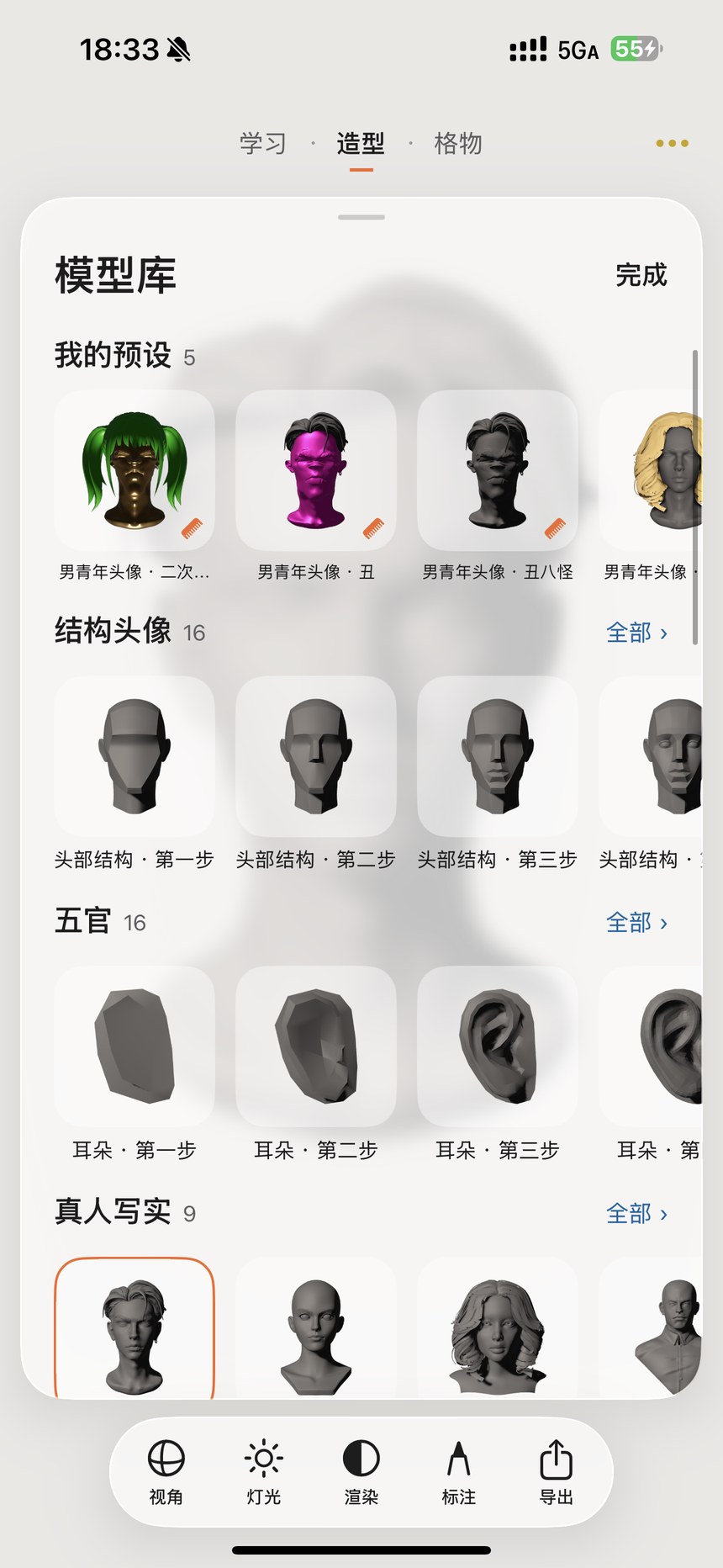
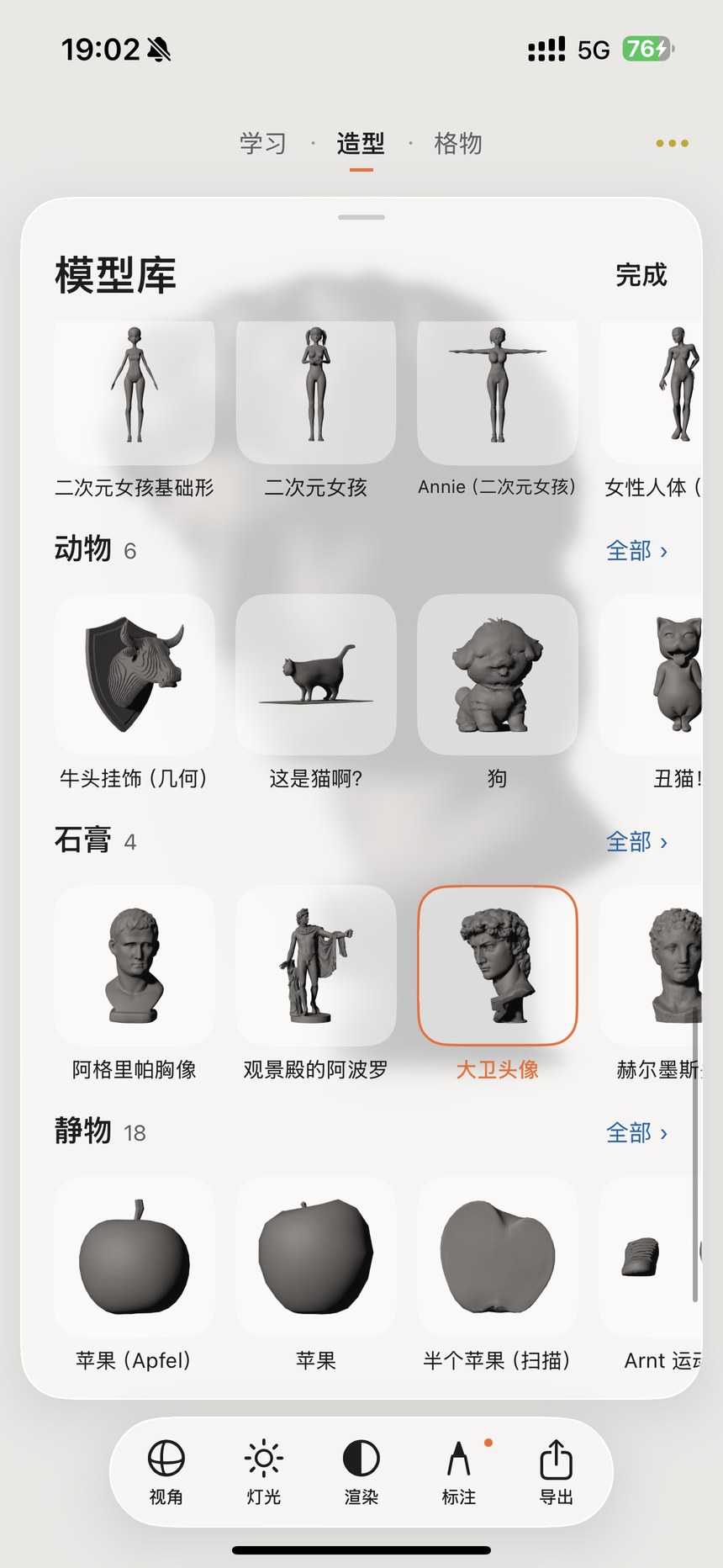
Study staged heads and facial features alongside realistic heads, bodies, animals, plaster casts and still-life objects.

  1. In the View panel, tap Change Model beside the current model name.
  2. Scroll through the categories. Tap All to see a complete category.
  3. Tap a card to return to Form. A thumbnail appears while the model loads; rotate it when loading finishes.

My Presets lets you reuse your own hair and material combinations. Staged models help connect large masses with fine detail.

Model library: from blocks to complete forms · Figure 3 — Chinese App interfaceEnlarge screenshot ↗
Model library: from blocks to complete forms · Figure 3
Model library: from blocks to complete forms · Figure 4 — Chinese App interfaceEnlarge screenshot ↗
Model library: from blocks to complete forms · Figure 4

Keep the form fixed and compare diffuse shading, highlights and transparency.

  1. In View, choose ivory, plaster, terracotta, charcoal, bronze, pale glaze, glass, stainless steel or wood.
  2. Compare transitions and reflections. Hair and the head can use different materials.
  3. In the model-value control, 1 is lightest and 9 is darkest. This is separate from the 0–100 palette-value scale.

Plaster or ivory provides a useful starting point when strong reflections make the large forms harder to read.

Nine materials & model value · Figure 5 — Chinese App interfaceEnlarge screenshot ↗
Nine materials & model value · Figure 5

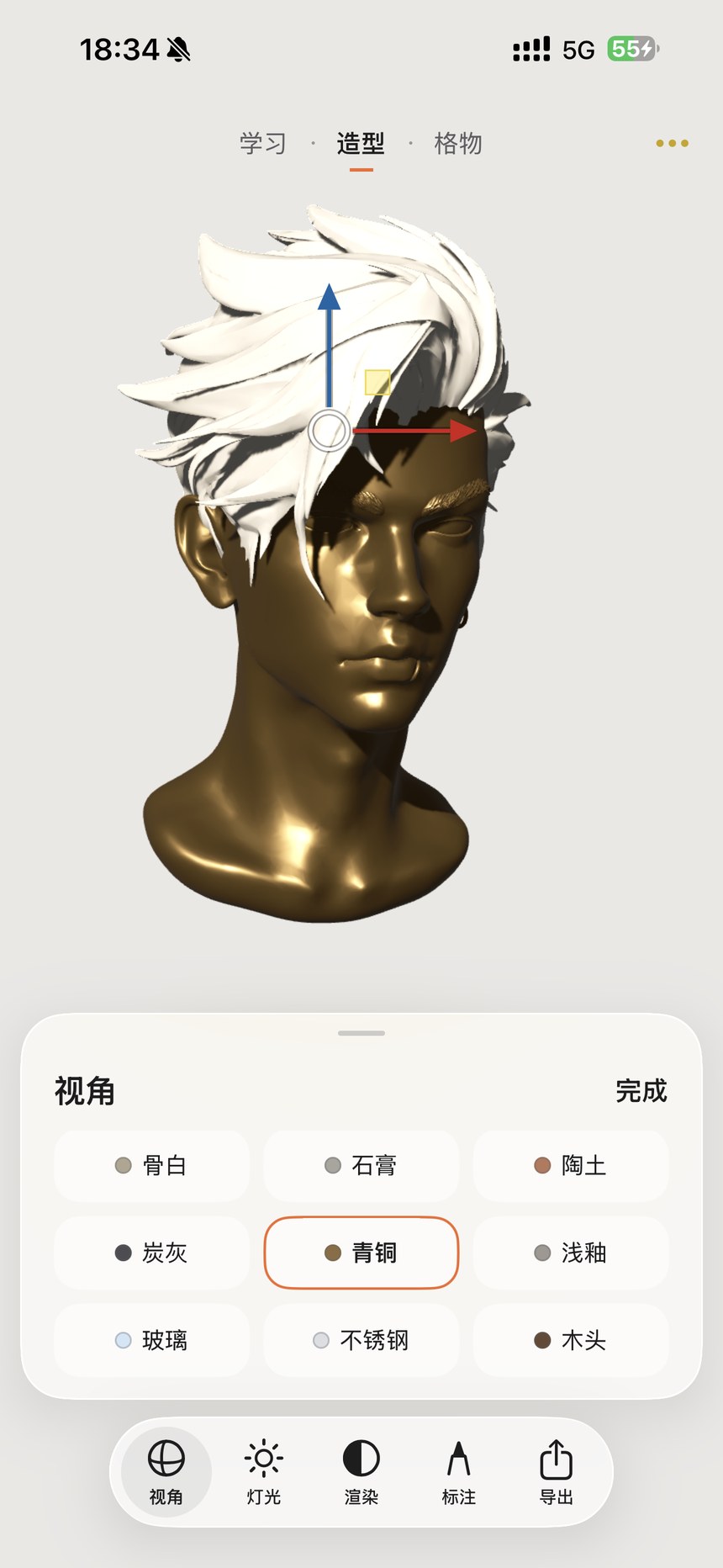
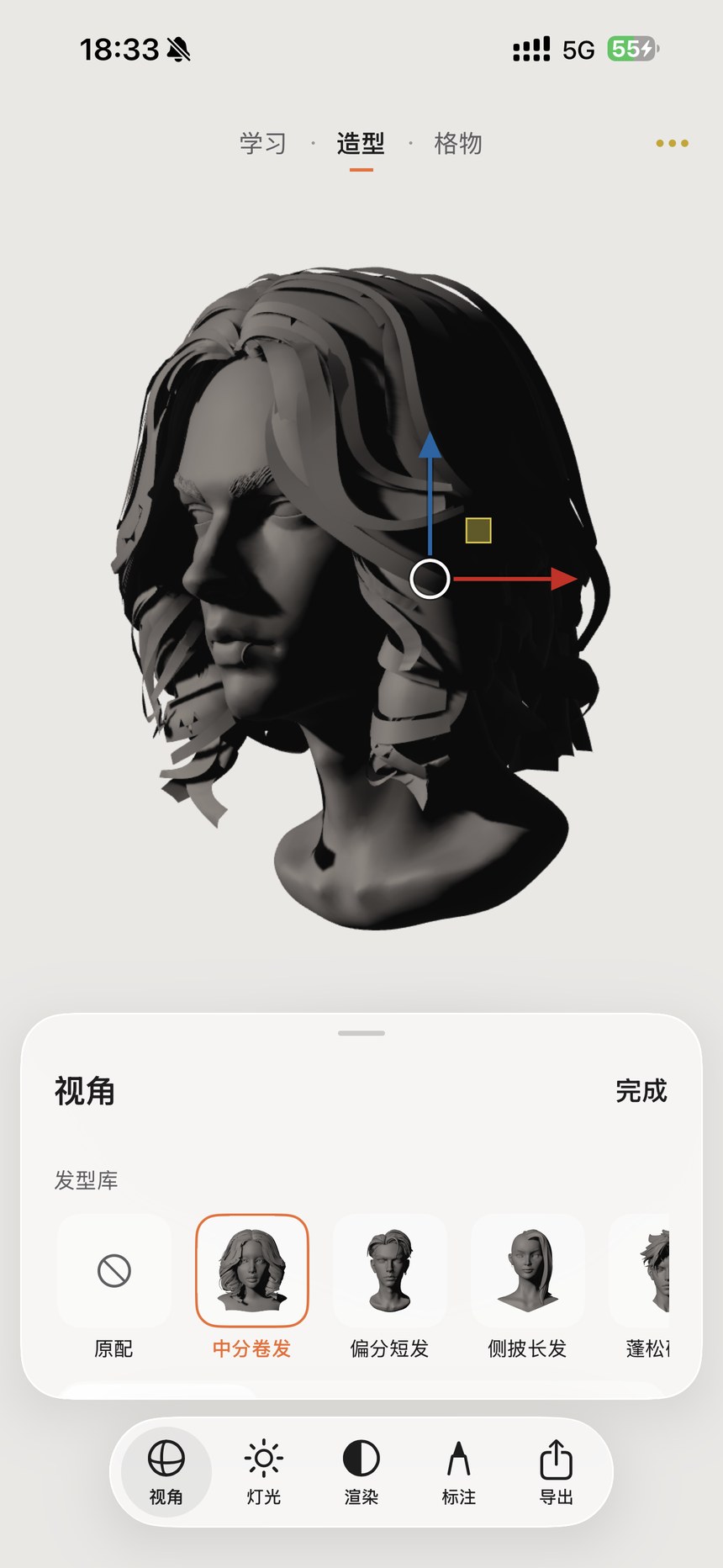
Study hair as a separate mass and compare its volume and hairline with the skull.

  1. Choose the original hair or another style in the View panel. The crossed-circle option removes hair.
  2. Drag the colored arrows to adjust its position, or the yellow square to move it within a plane.
  3. Save the adjusted hair and materials to My Presets, then select that preset from the library next time.

Hair is positioned automatically first; fine-tune it to suit the current head.

Change hair & save a personal preset · Figure 6 — Chinese App interfaceEnlarge screenshot ↗
Change hair & save a personal preset · Figure 6

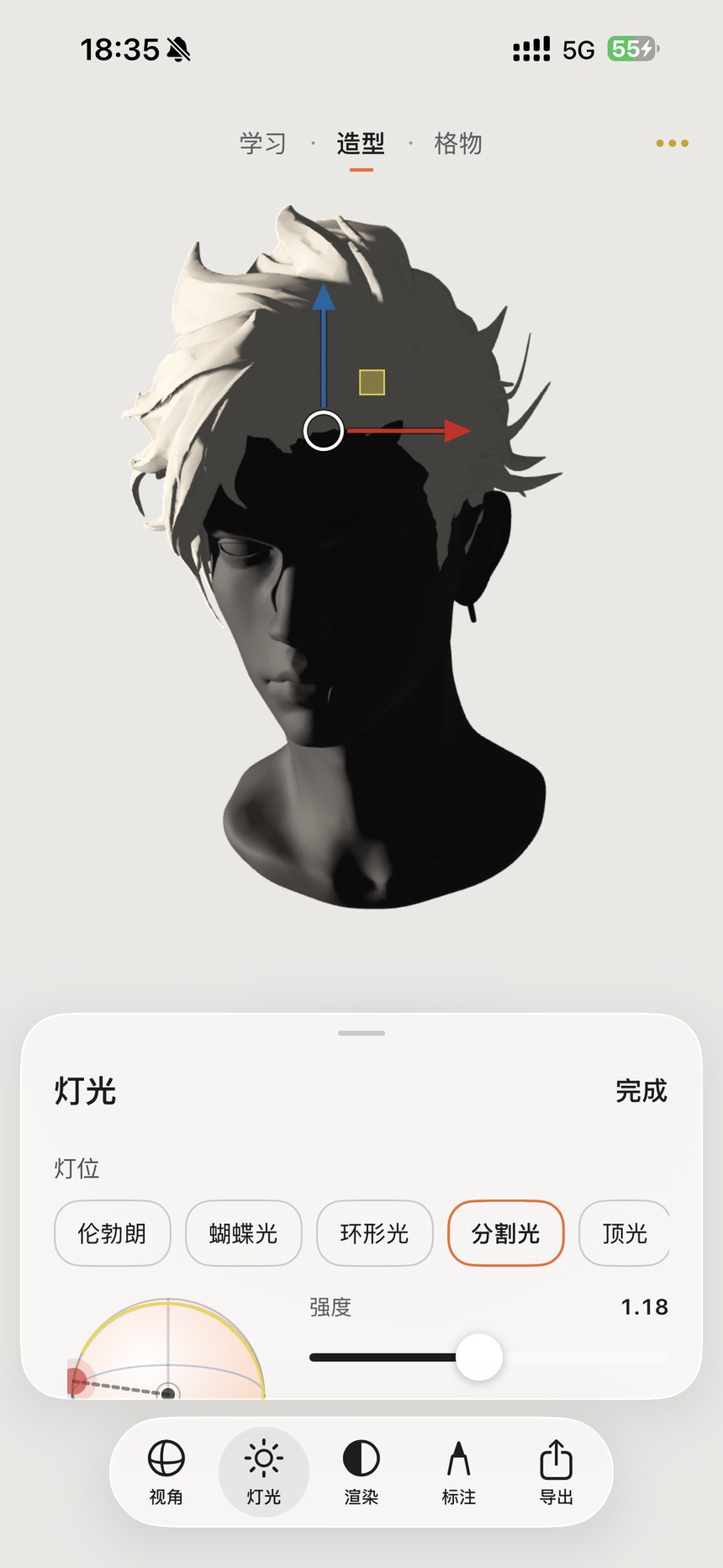
Start with a portrait-lighting setup, then move the light to study the terminator and cast shadows.

  1. Open Lighting and choose Rembrandt, butterfly, loop, split or top lighting.
  2. Drag the red point on the light sphere to change the main-light direction. Shading and shadows update together.
  3. Adjust the intensity slider and tap Done to keep the setup.

Split lighting is a useful starting point for reading two large value masses. Move the light slightly to see the terminator wrap around the form.

Five lighting presets & a movable light · Figure 7 — Chinese App interfaceEnlarge screenshot ↗
Five lighting presets & a movable light · Figure 7

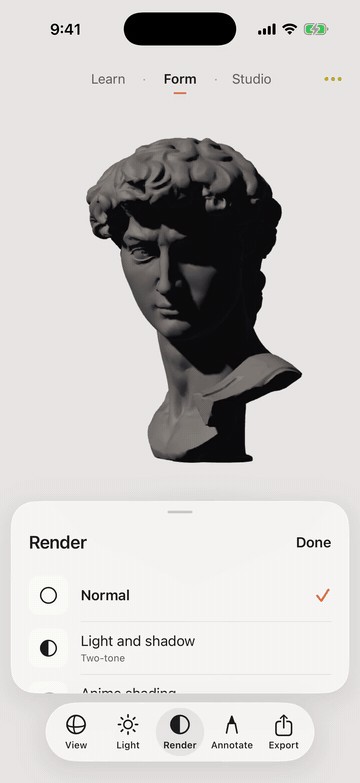
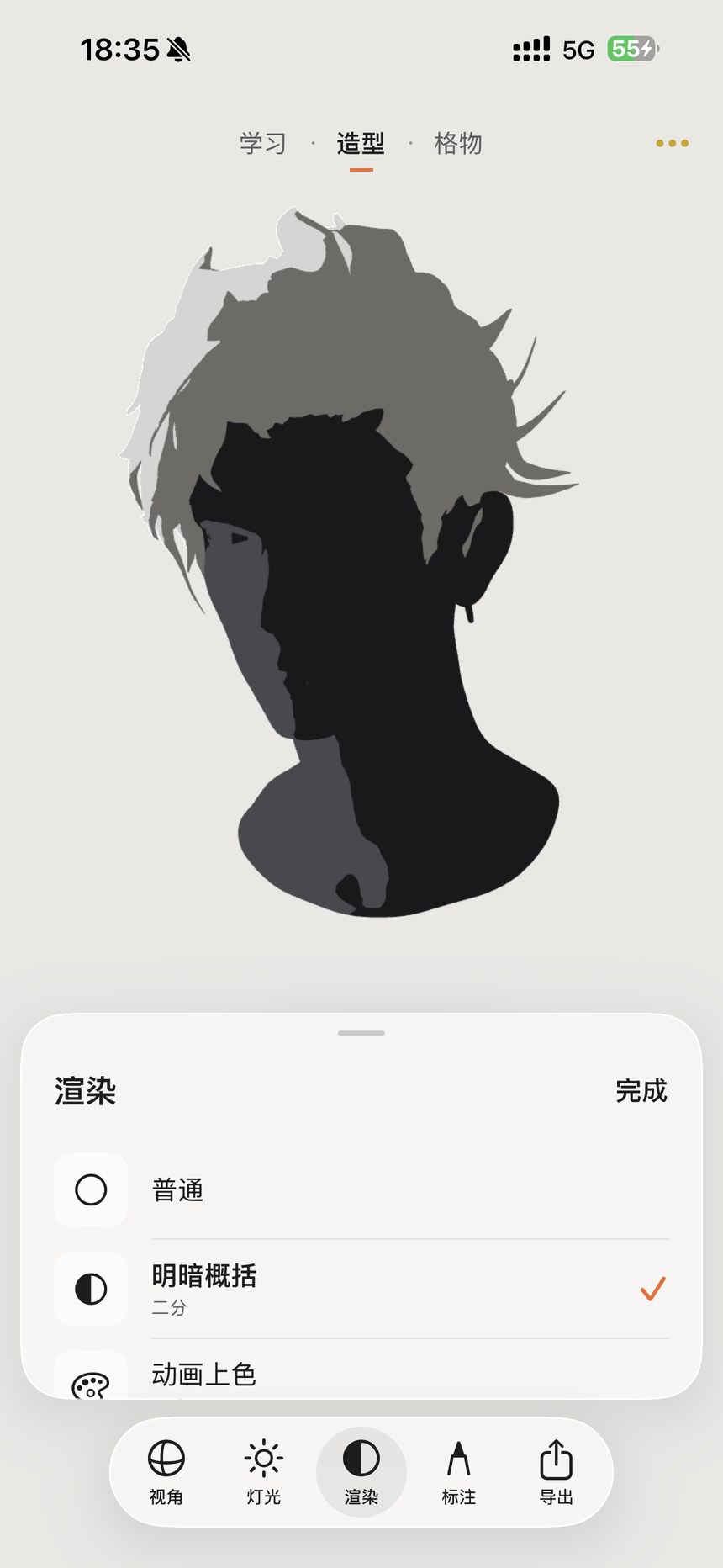
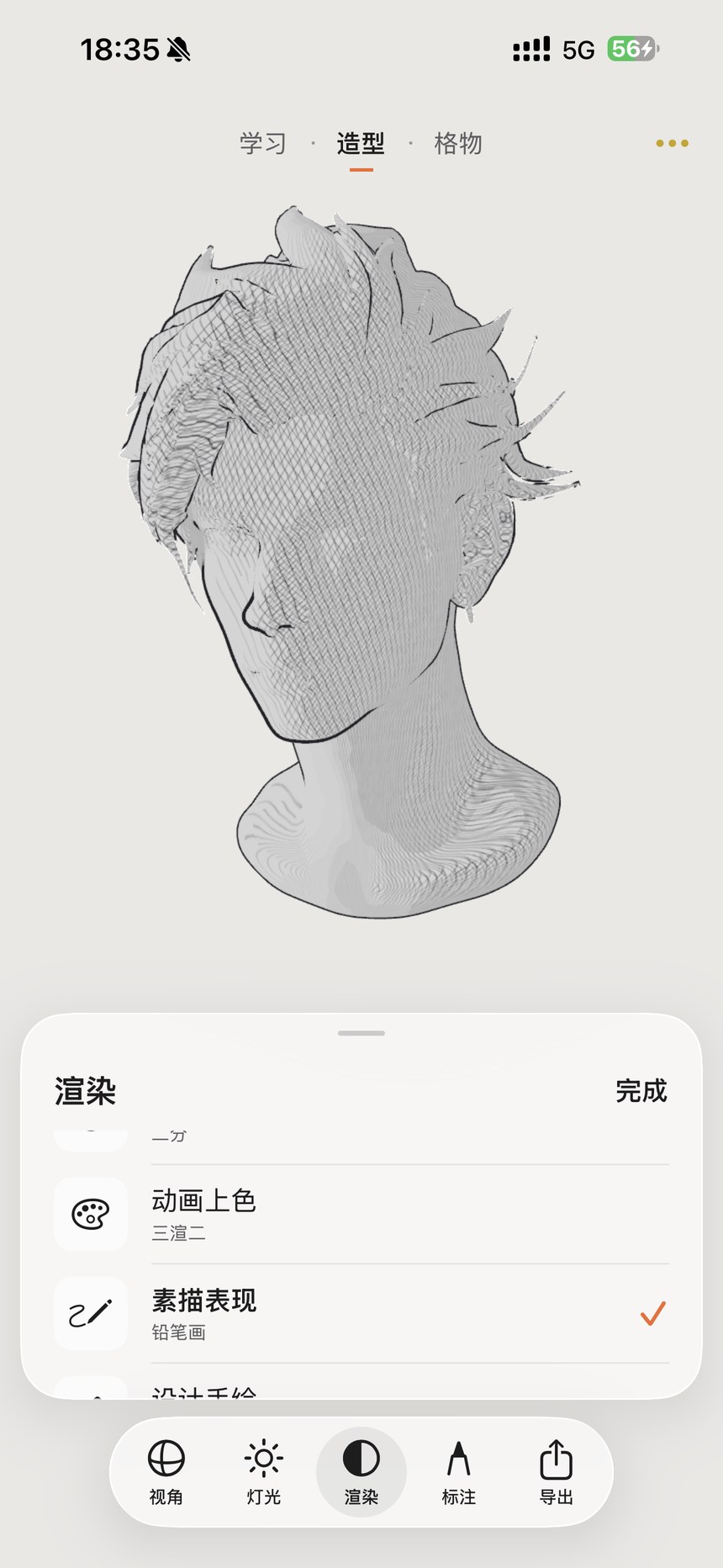
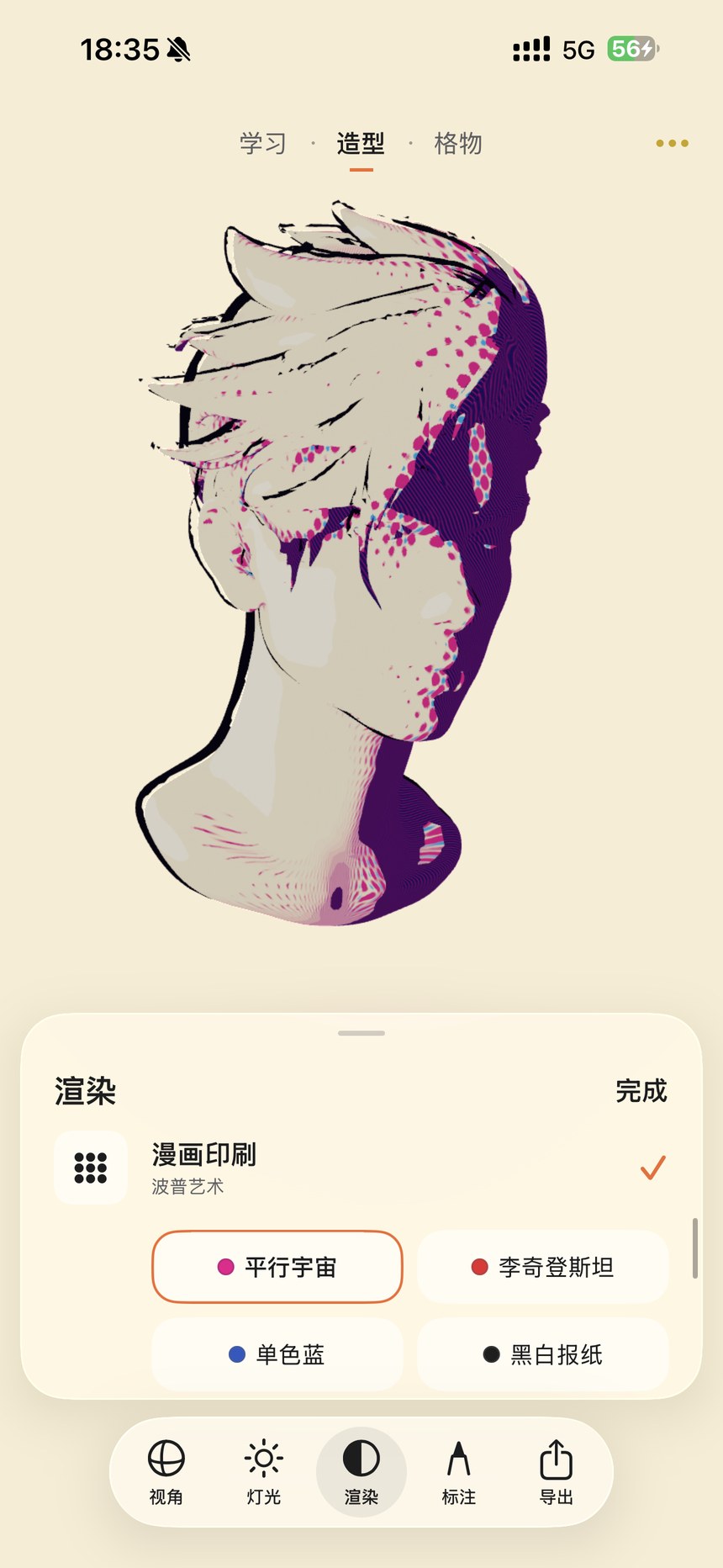
Keep the view and light fixed while exploring large value masses and different visual treatments.

  1. Open Render and choose Normal, Two-tone, Toon, Pencil, Marker or Pop Art.
  2. Two-tone separates light from shadow. Pencil describes tone with hatching. Pop Art offers alternate palettes, including multiverse, Lichtenstein, monochrome blue and newspaper.
  3. The current App also includes Paint, Value, Silhouette and See-through views. Available options depend on the selected object.

Read the form in Normal first, then use Two-tone to check the light–shadow structure. The recording below plays only when you choose to start it.

Rendering: simplify complex forms — recorded App demonstration
Recorded in the App · click to play
Rendering: simplify complex forms · Figure 8 — Chinese App interfaceEnlarge screenshot ↗
Rendering: simplify complex forms · Figure 8
Rendering: simplify complex forms · Figure 9 — Chinese App interfaceEnlarge screenshot ↗
Rendering: simplify complex forms · Figure 9
Rendering: simplify complex forms · Figure 10 — Chinese App interfaceEnlarge screenshot ↗
Rendering: simplify complex forms · Figure 10

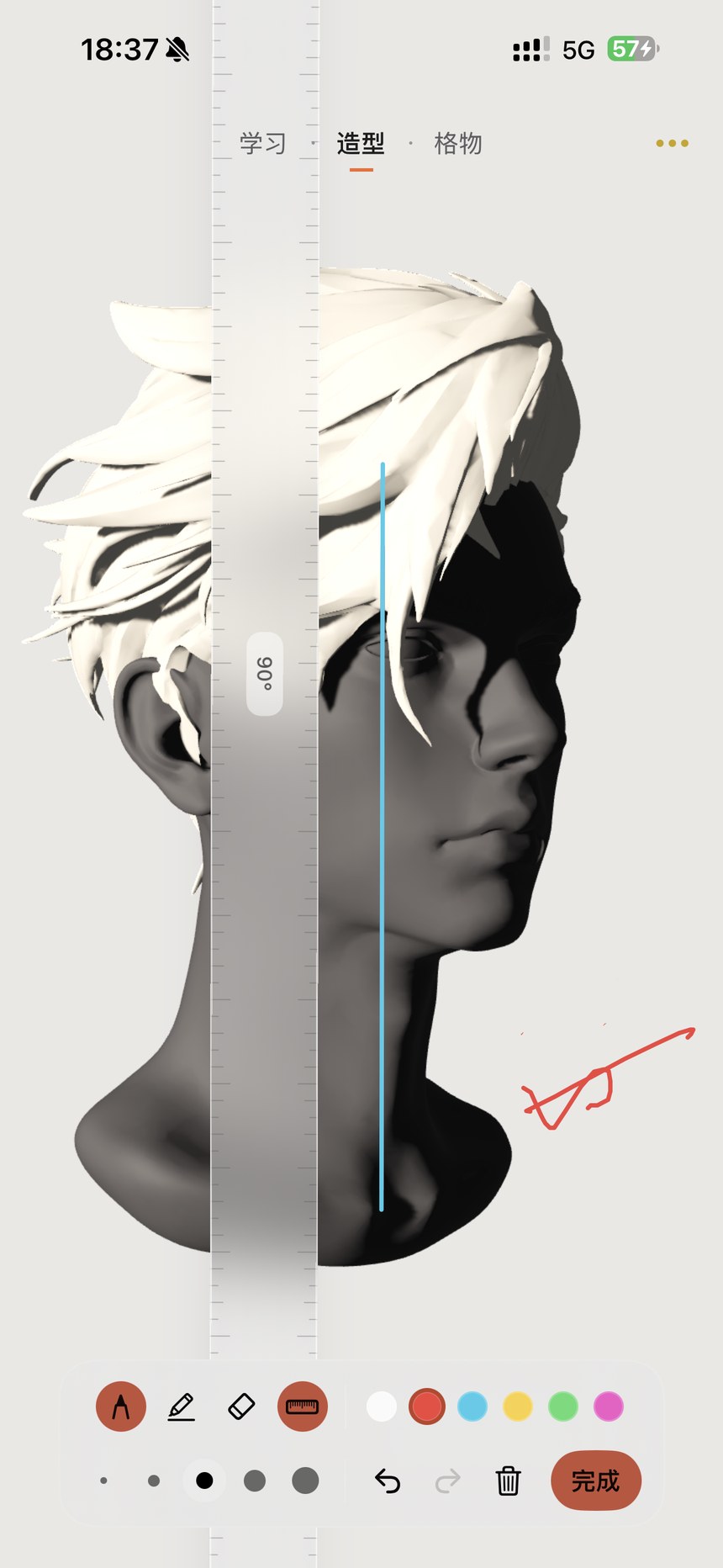
Mark center lines, proportions and contour tangents at a chosen angle.

  1. Open Annotate. Choose a brush, pencil, eraser or ruler, then set color and stroke width.
  2. Rotate the translucent ruler with two fingers and draw along its edge. Use undo, redo or clear to revise marks.
  3. Tap Done to return to observation. Changing the view automatically hides the 2D marks so they do not drift out of alignment.

Set the final view before annotating and exporting. Marks sit on the image plane and do not rotate with the 3D surface.

Annotate with a translucent ruler · Figure 11 — Chinese App interfaceEnlarge screenshot ↗
Annotate with a translucent ruler · Figure 11

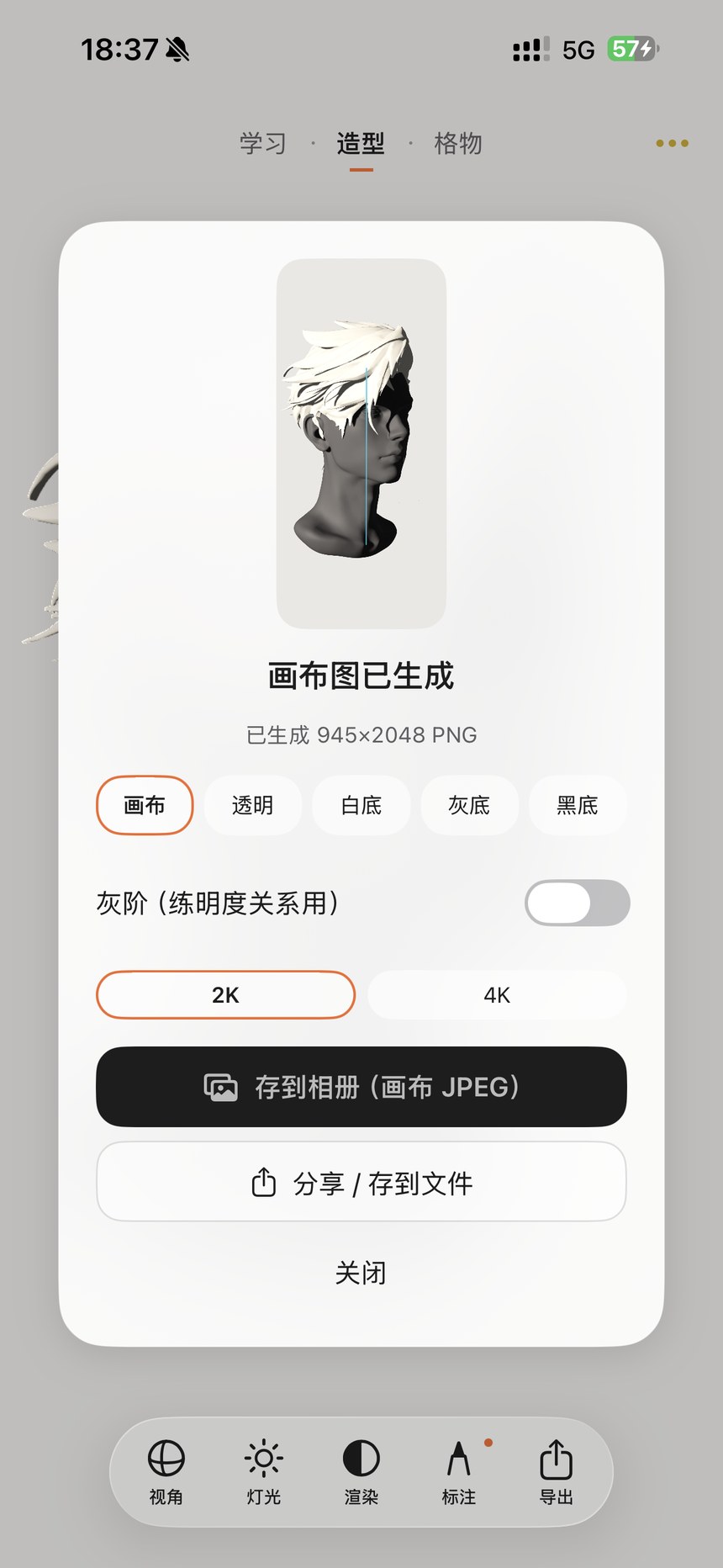
Save the current view, lighting, rendering and annotations for use beside your drawing or in another art app.

  1. Open Export and check the generated preview, dimensions and file format.
  2. Choose the canvas, transparent, white, gray or black background. Enable Grayscale to study values, and choose 2K or 4K resolution.
  3. Save to Photos or use Share / Save to Files. Allow photo access when the system first requests it.

If the image does not appear in Photos, check the App’s photo permission in system settings and export again. Model export is separate from downloading high-resolution artwork originals.

Export a 2K / 4K drawing reference · Figure 12 — Chinese App interfaceEnlarge screenshot ↗
Export a 2K / 4K drawing reference · Figure 12

Start with a familiar gesture, then adjust individual fingers to create a specific reference.

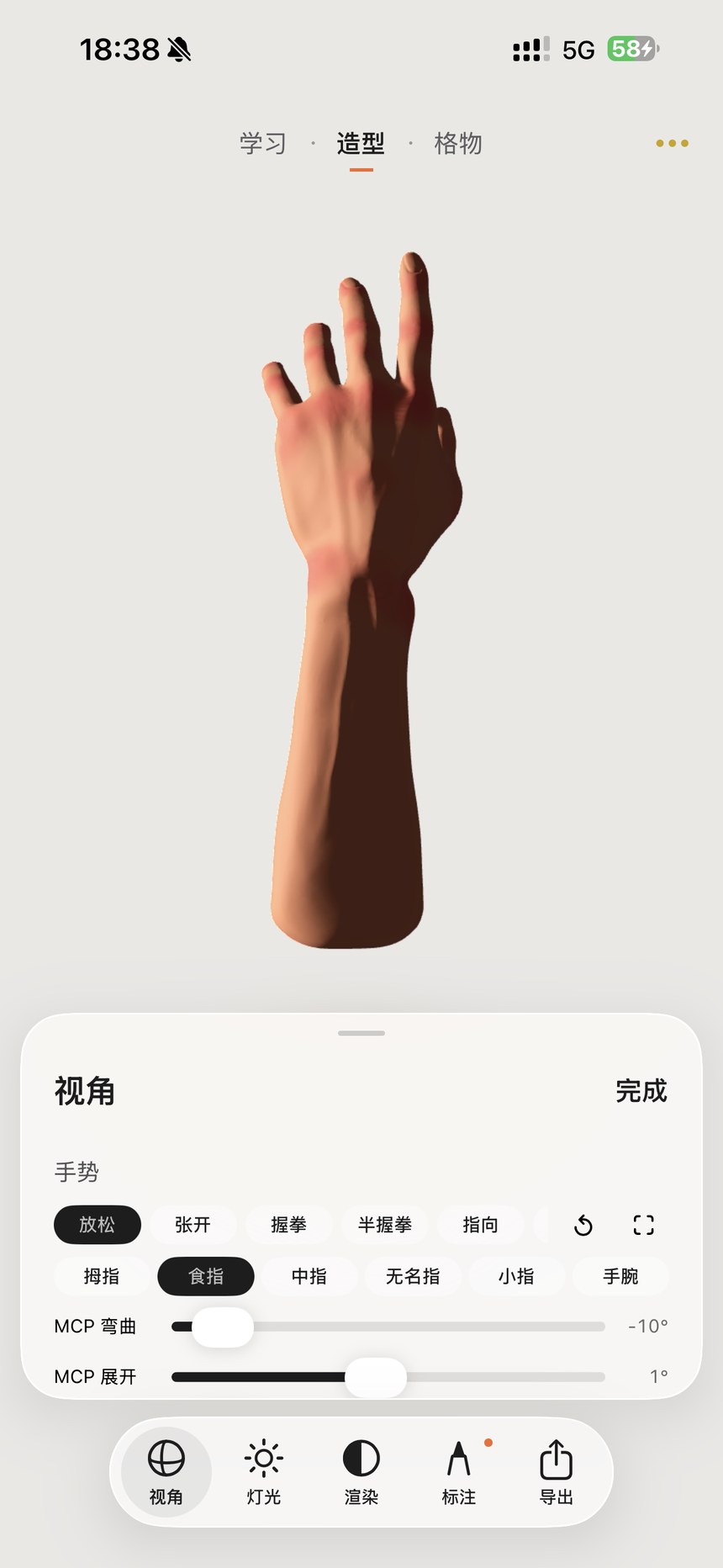
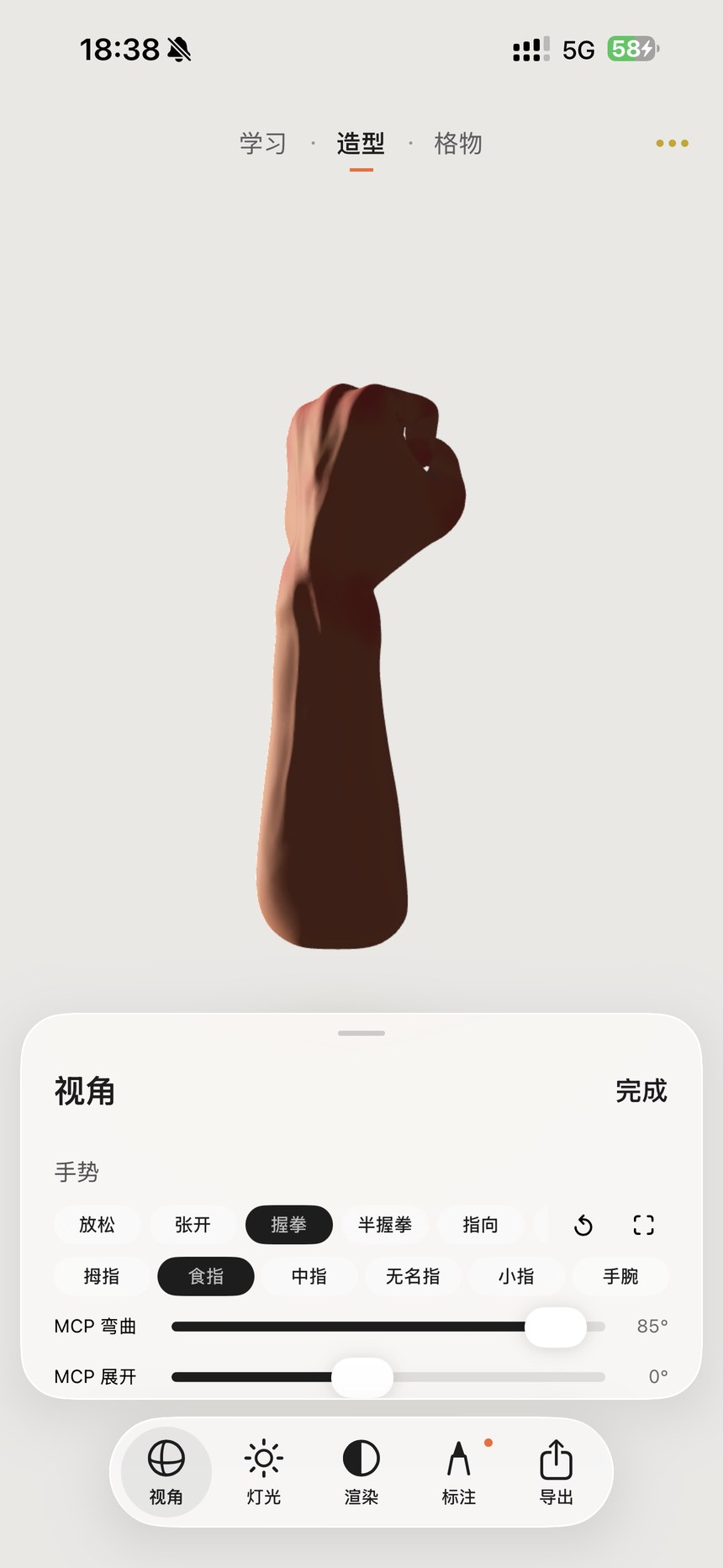
  1. Choose a hand model and select Relaxed, Open, Fist, Half-fist or Pointing in the pose controls.
  2. Select the thumb, index, middle, ring or little finger, or the wrist, then use the available controls.
  3. MCP Flexion bends the joint at the finger base; MCP Spread changes its sideways angle. Reset the pose or use the full-screen view when needed.

Establish the overall gesture first, then refine individual fingers while watching the knuckles and the masses on the back of the hand.

Hand poses & MCP joints — recorded App demonstration
Recorded in the App · click to play
Hand poses & MCP joints · Figure 13 — Chinese App interfaceEnlarge screenshot ↗
Hand poses & MCP joints · Figure 13
Hand poses & MCP joints · Figure 14 — Chinese App interfaceEnlarge screenshot ↗
Hand poses & MCP joints · Figure 14

Test ideas about planes, light, proportion, perspective and structure directly on the model.

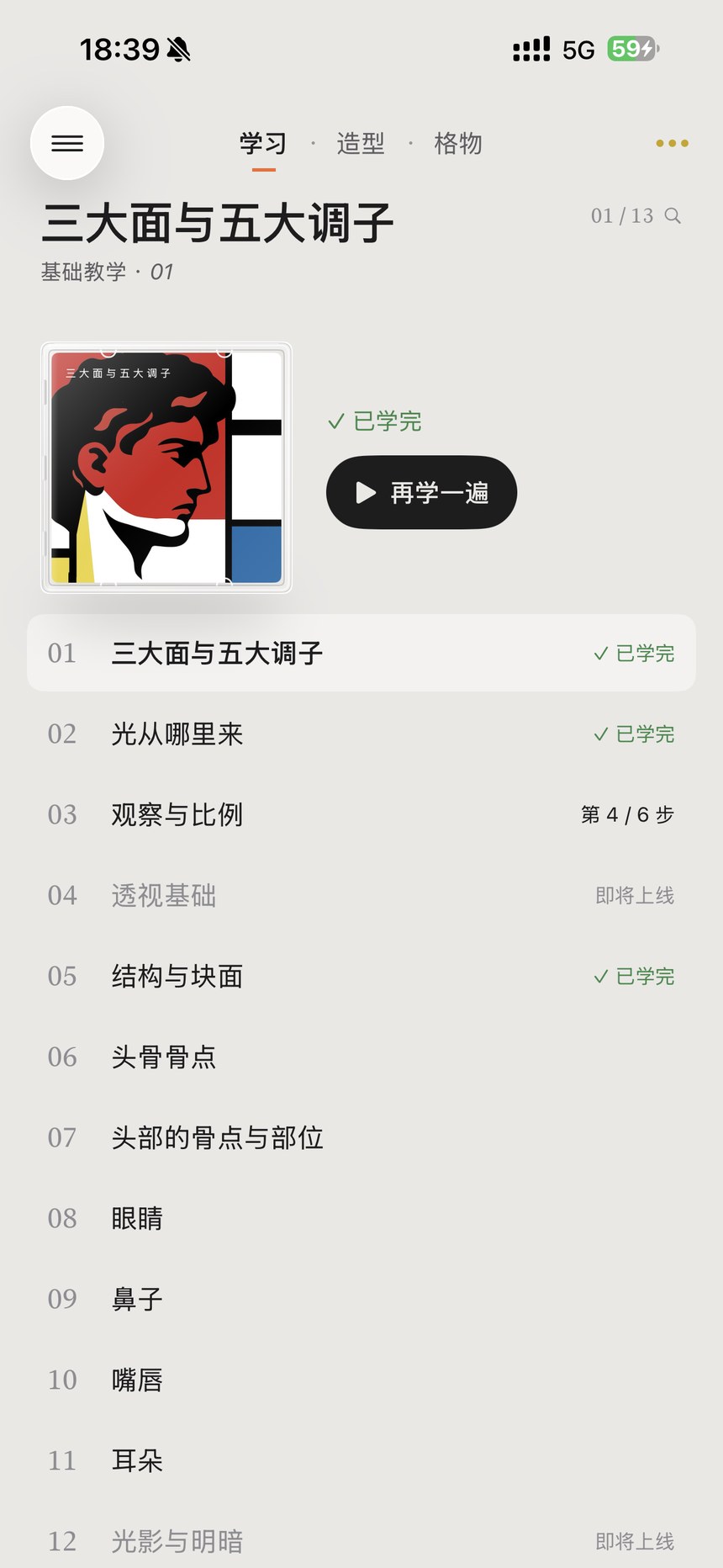
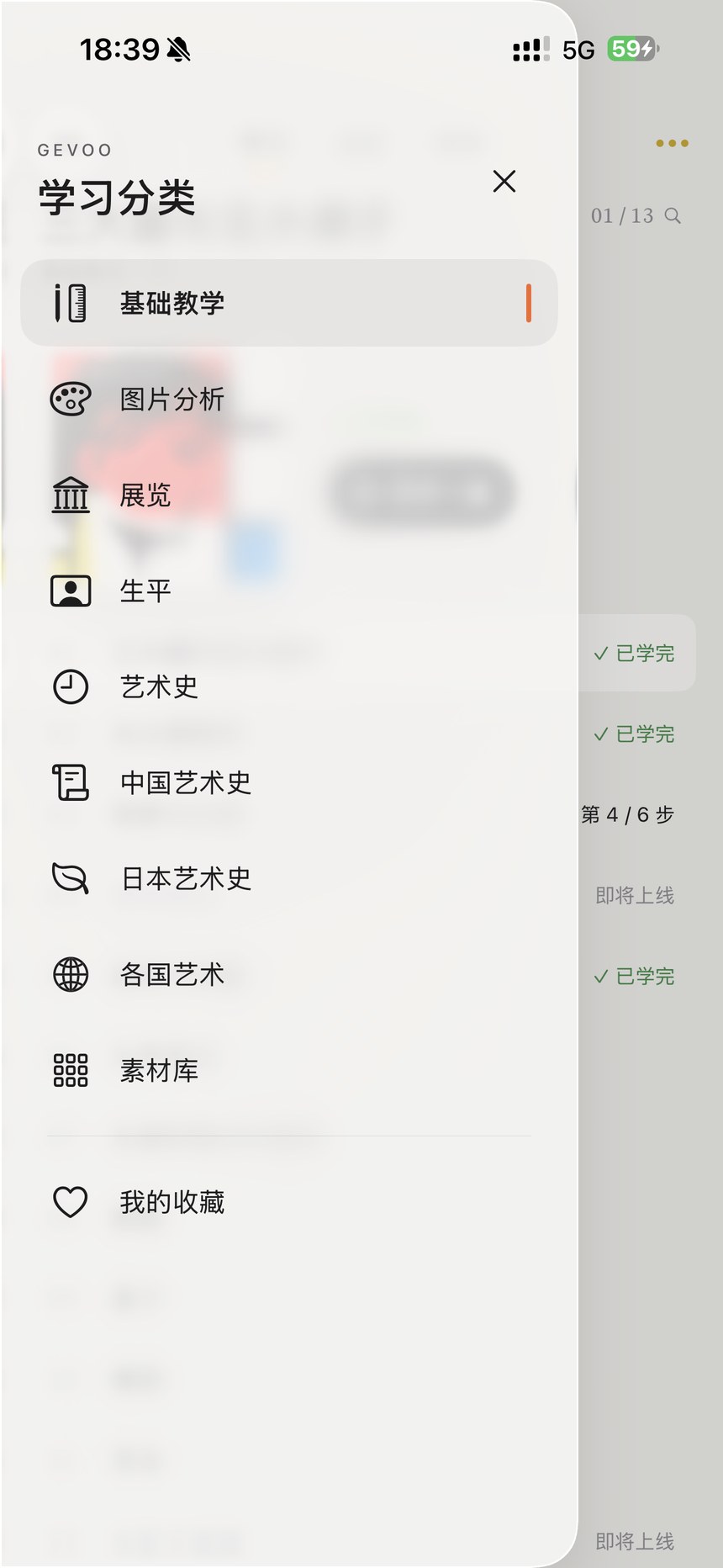
  1. Open Learn and choose Fundamentals from the category menu at the upper left.
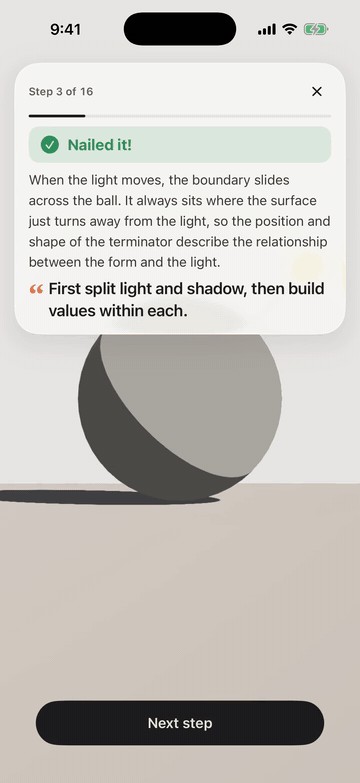
  2. Tap Start or Continue, then follow the steps to rotate a model, move a light or change the rendering.
  3. The index shows completed lessons, the current step or Coming Soon. Progress is stored locally, and completed lessons can be repeated.

Some lessons are still in preparation. Account sync appears only when the service is configured and available; see Devices, accounts & connectivity.

Learn by working with the model — recorded App demonstration
Recorded in the App · click to play
Learn by working with the model · Figure 15 — Chinese App interfaceEnlarge screenshot ↗
Learn by working with the model · Figure 15
Learn by working with the model · Figure 16 — Chinese App interfaceEnlarge screenshot ↗
Learn by working with the model · Figure 16

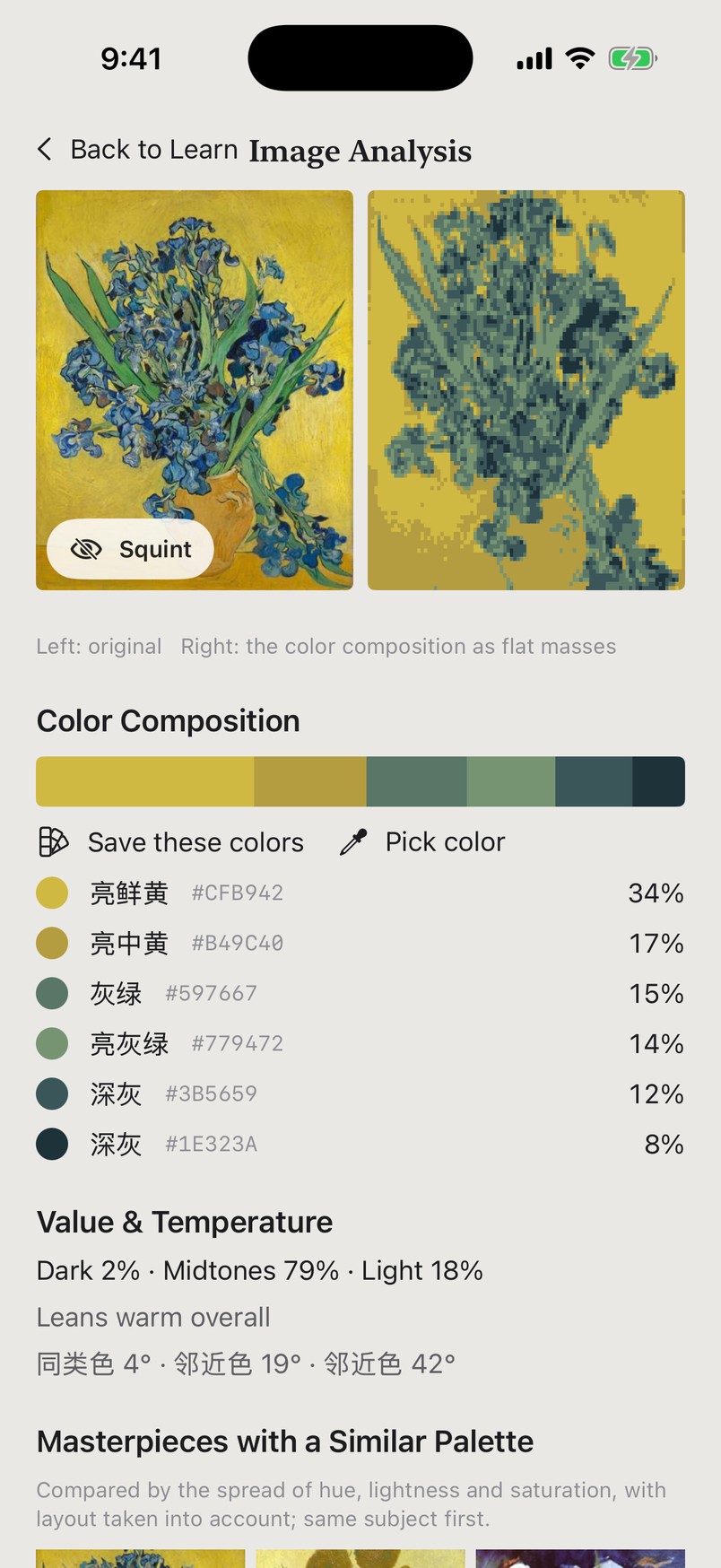
Connect image analysis with model practice to compare composition, color and value structure.

  1. Choose Image Analysis in the Learn category menu.
  2. Select an analysis and open its detail view to study the simplified relationships.
  3. Bring those observations back to Form: adjust the view or lighting, or compare a grayscale or Two-tone rendering.

These images show the App’s Image Analysis pages. This is a separate entry from Squint in an artwork detail.

Image analysis: return to the big pictureEnlarge screenshot ↗
Image analysis: return to the big picture
Image analysis: return to the big pictureEnlarge screenshot ↗
Image analysis: return to the big picture

Connect artists’ lives and works with their historical setting to enrich your observation.

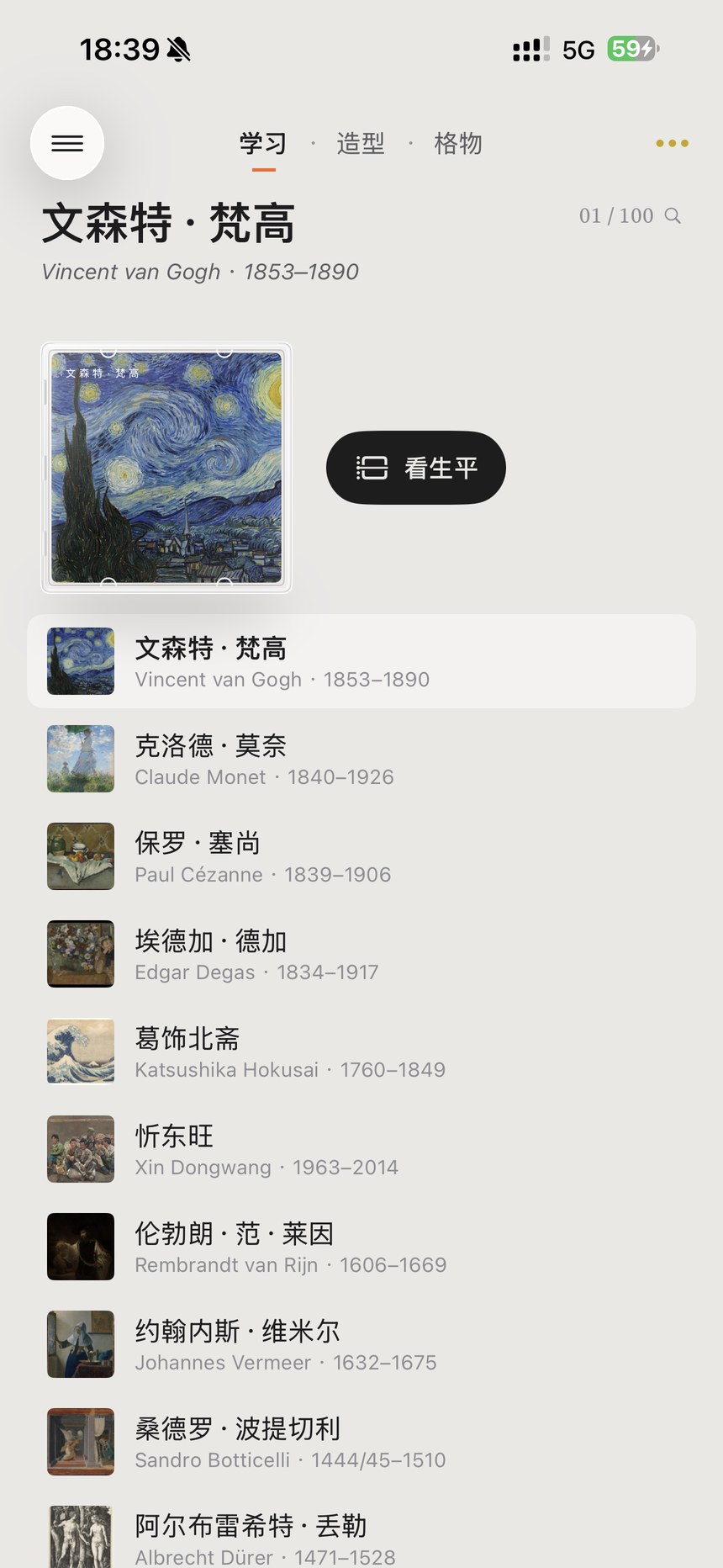
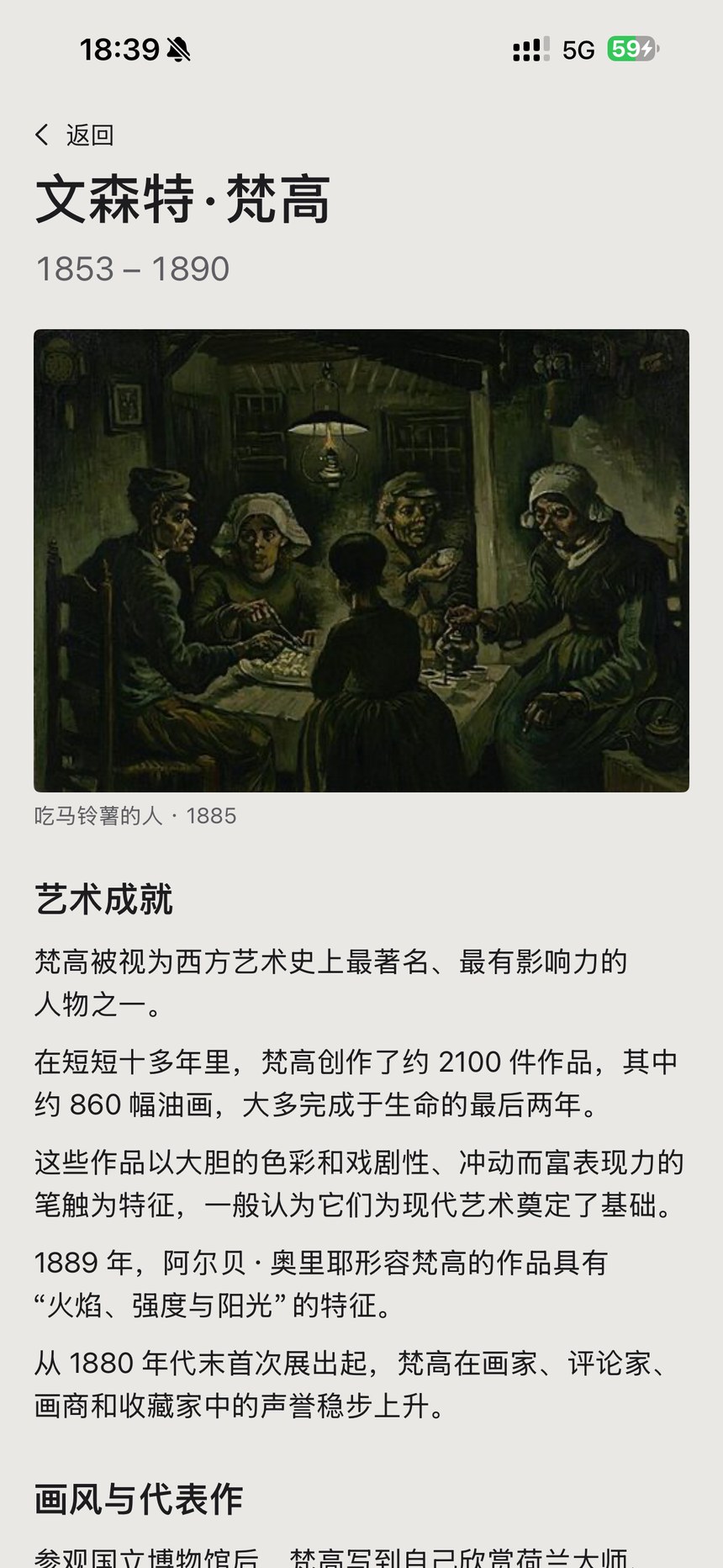
  1. Choose Biographies in Learn. Browse the artist list and open a biography to read about achievements and style.
  2. Read about artistic achievements, style and representative works to connect the art with the artist’s life.
  3. Return to the artworks and compare subject matter, lighting, color and composition.

Artists whose works remain under copyright are represented by text and official museum links, without artwork images. Respect the sources and licenses stated for each work.

Artist biographies & creative context · Figure 17 — Chinese App interfaceEnlarge screenshot ↗
Artist biographies & creative context · Figure 17
Artist biographies & creative context · Figure 18 — Chinese App interfaceEnlarge screenshot ↗
Artist biographies & creative context · Figure 18

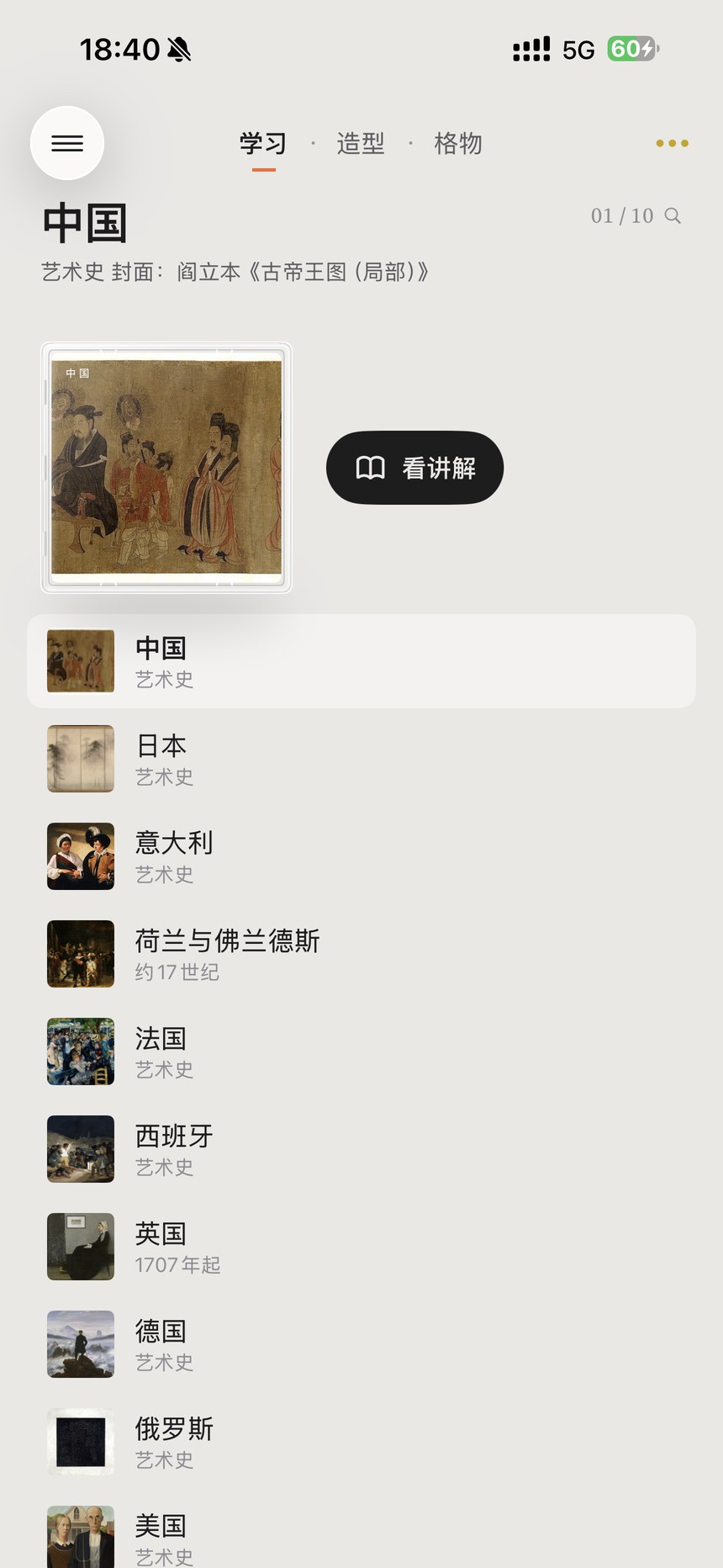
Follow the connections between movements and artists over time, placing a work in its historical setting.

  1. Choose Art History, Chinese Art History, Japanese Art History or Art by Country in the Learn categories.
  2. Browse topics for China, Japan, Italy, the Netherlands and Flanders, France and other regions. Check each cover and its source.
  3. Open the explanation to follow major movements, artists and works chronologically, then compare examples in the reference library.

Biographies focus on an individual life; art history connects changes across a region and period. Read the two together.

Explore art history by country & region · Figure 21 — Chinese App interfaceEnlarge screenshot ↗
Explore art history by country & region · Figure 21
15

Learn & reference

Artwork details & Squint

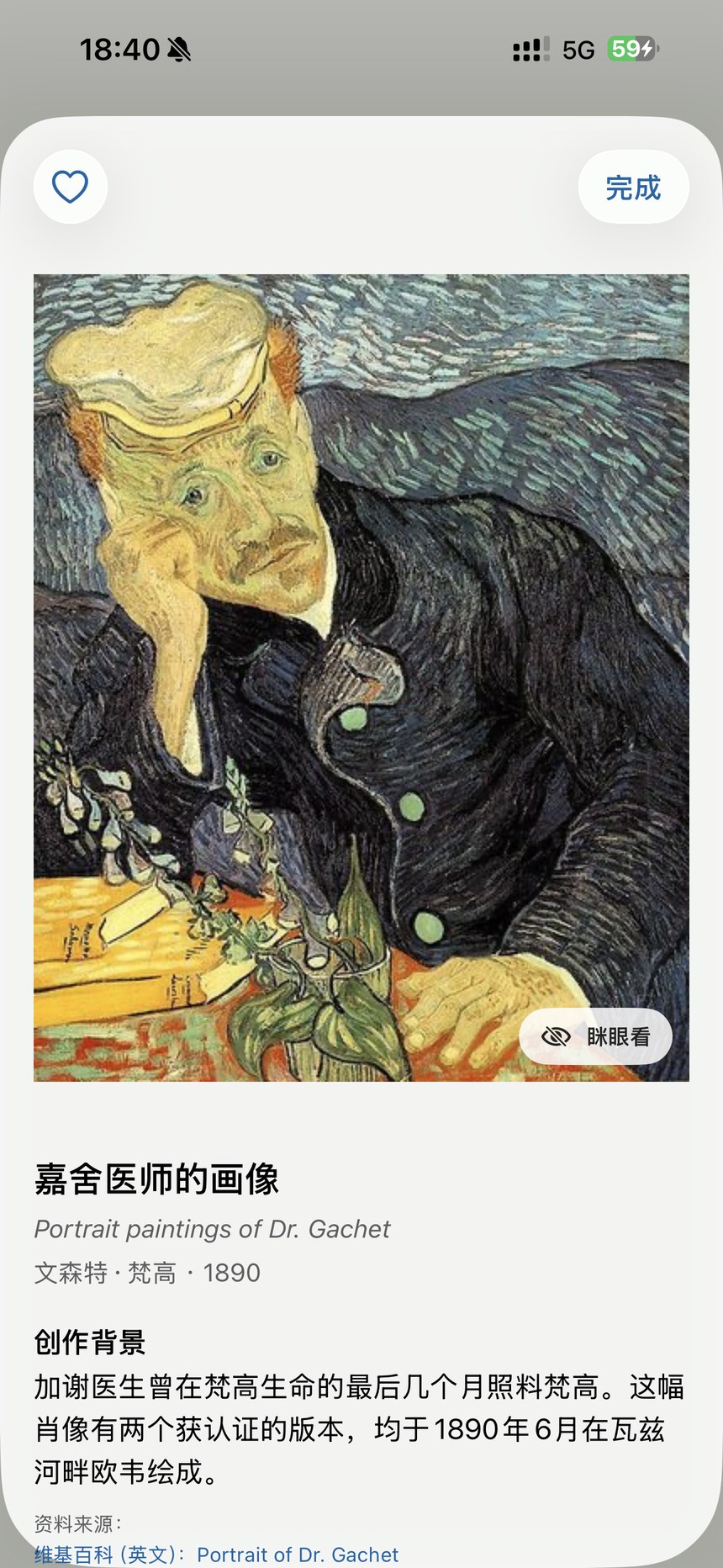
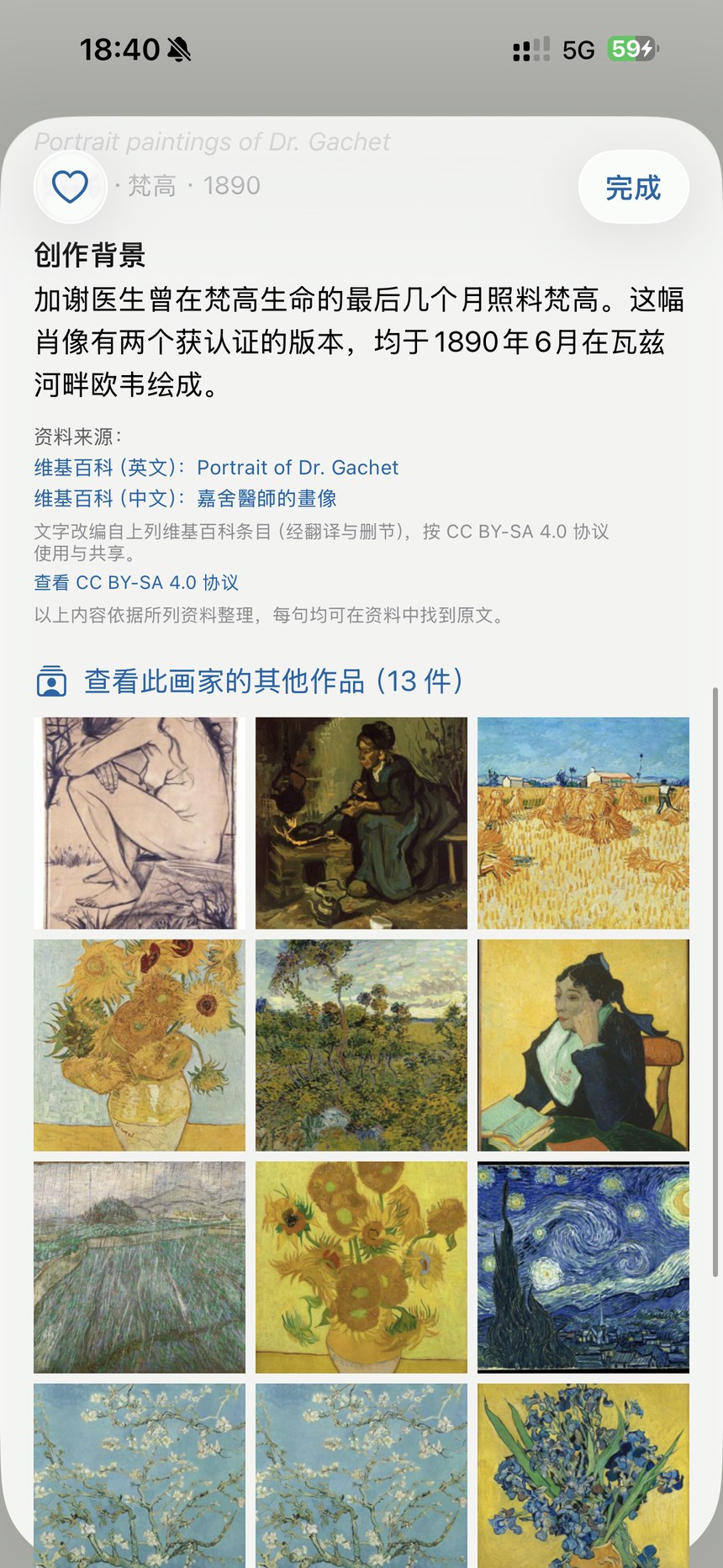
Read the large value shapes first, then explore the background and source of the work.

  1. Tap an artwork in a biography or the reference library to see its image, artist, date and background.
  2. Use Squint to blur the image temporarily and focus on large value masses. Tap the heart to save it.
  3. Scroll for source and license information and more works by the same artist. Original-image availability depends on the artwork.

Downloading 4K artwork originals requires an internet connection, sign-in and the relevant membership entitlement. Some works have no downloadable original.

Artwork details & Squint · Figure 19 — Chinese App interfaceEnlarge screenshot ↗
Artwork details & Squint · Figure 19
Artwork details & Squint · Figure 20 — Chinese App interfaceEnlarge screenshot ↗
Artwork details & Squint · Figure 20

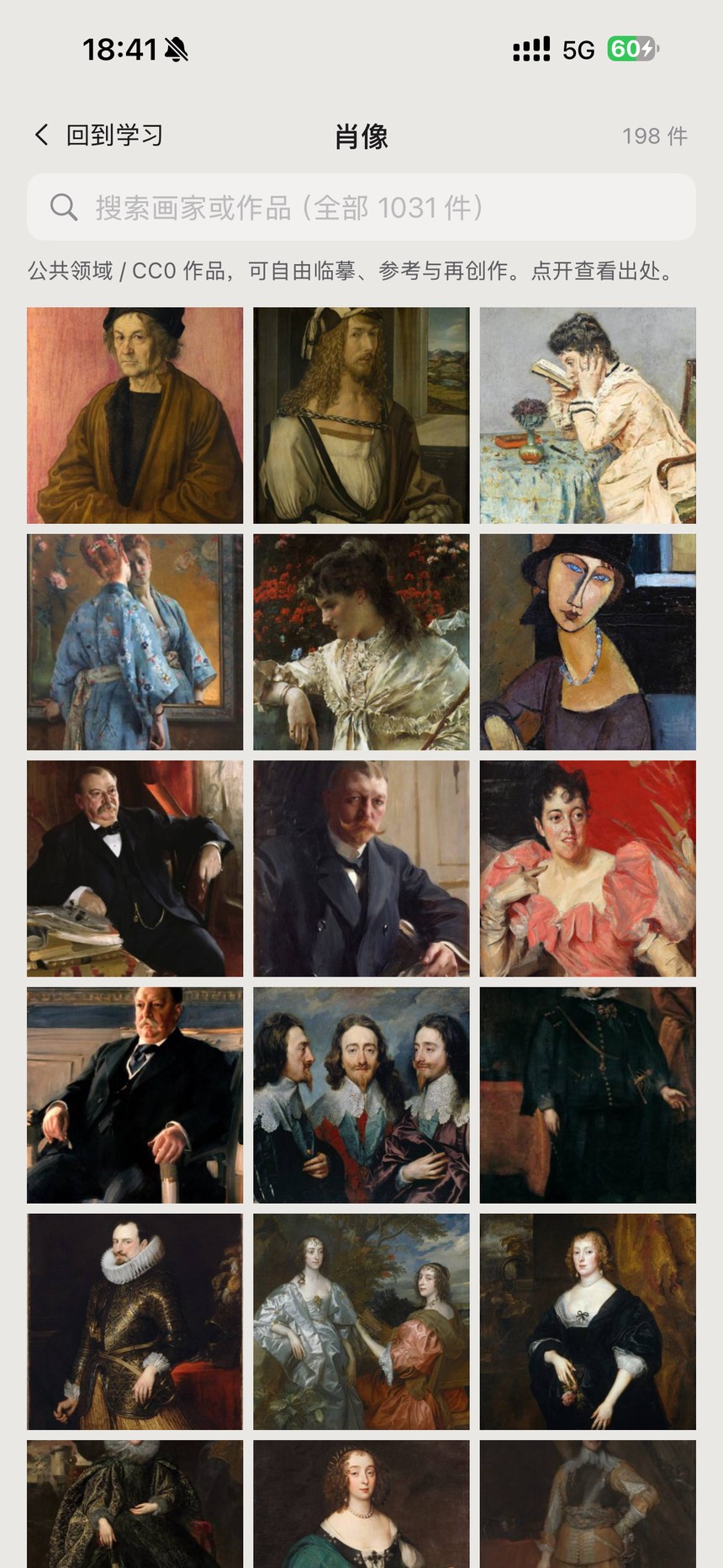
Browse by subject or find a specific reference by artist or artwork name.

  1. Open the reference library from Learn and choose a subject, such as portraits, to see a grid of works.
  2. Enter an artist or artwork name in the top search field to search the whole collection.
  3. Open a thumbnail and check its source and license before deciding how to use it.

The library focuses on public-domain and CC0 works. Refer to the original source and license information in each artwork’s details.

Search the artwork reference library · Figure 22 — Chinese App interfaceEnlarge screenshot ↗
Search the artwork reference library · Figure 22

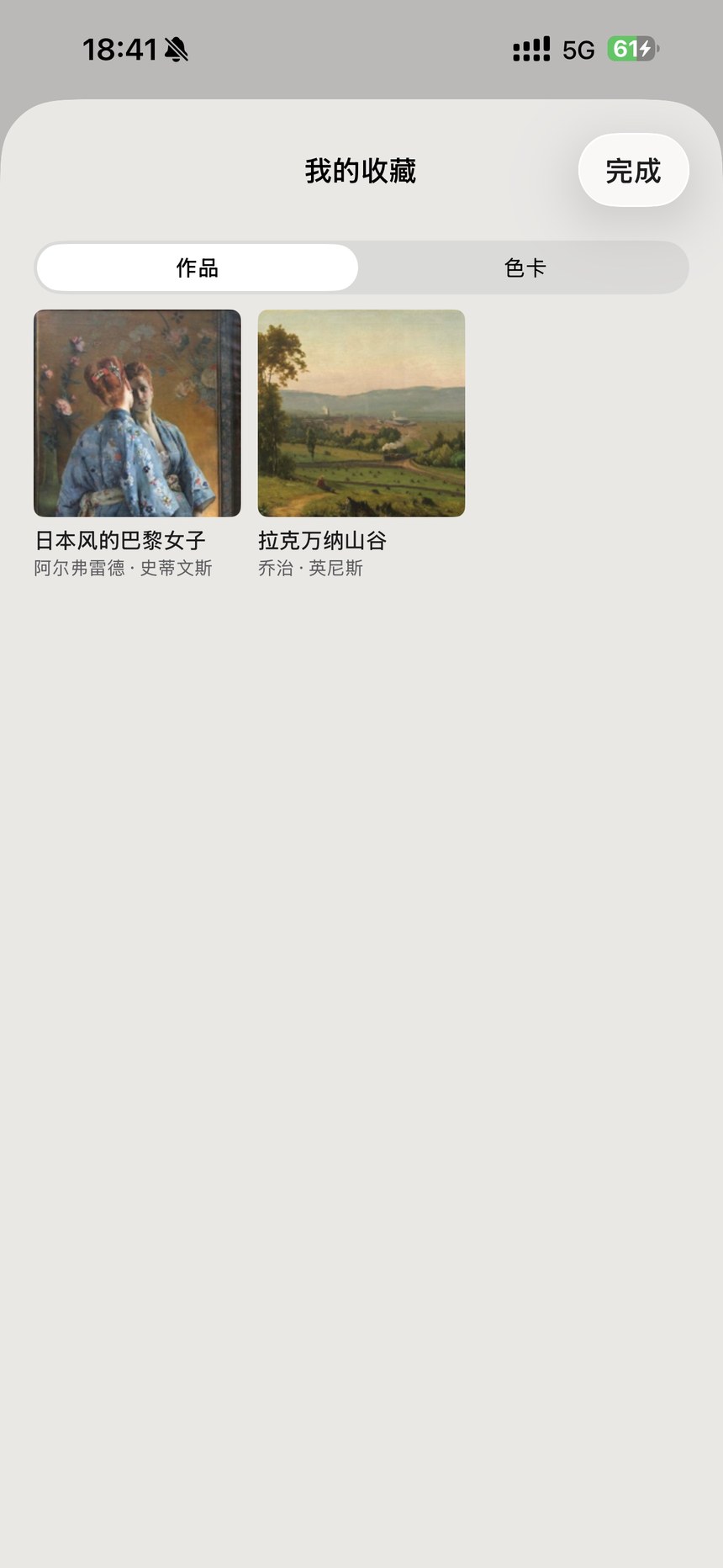
Keep useful references together and compare color structure through color codes and value numbers.

  1. Tap the heart in an artwork detail, then reopen it from My Favorites in Learn.
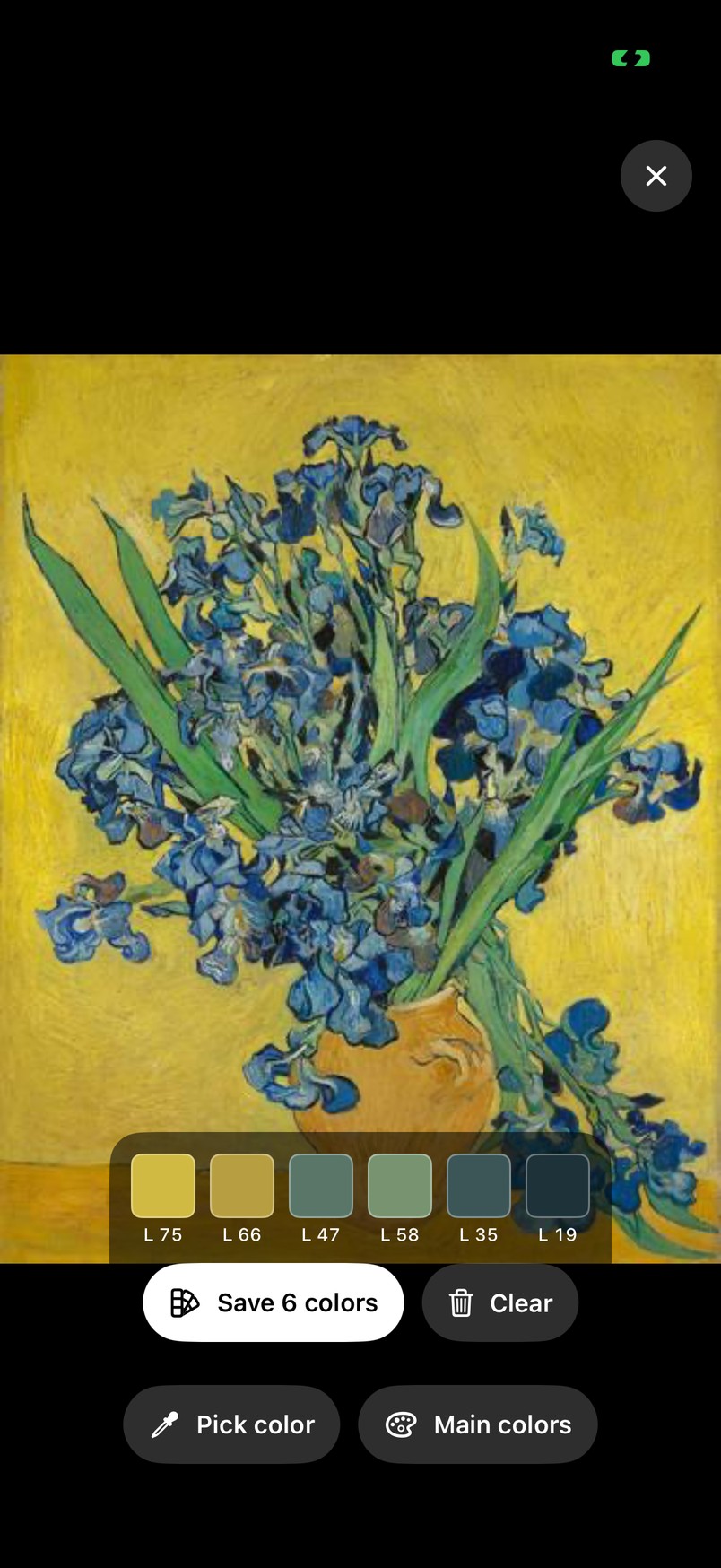
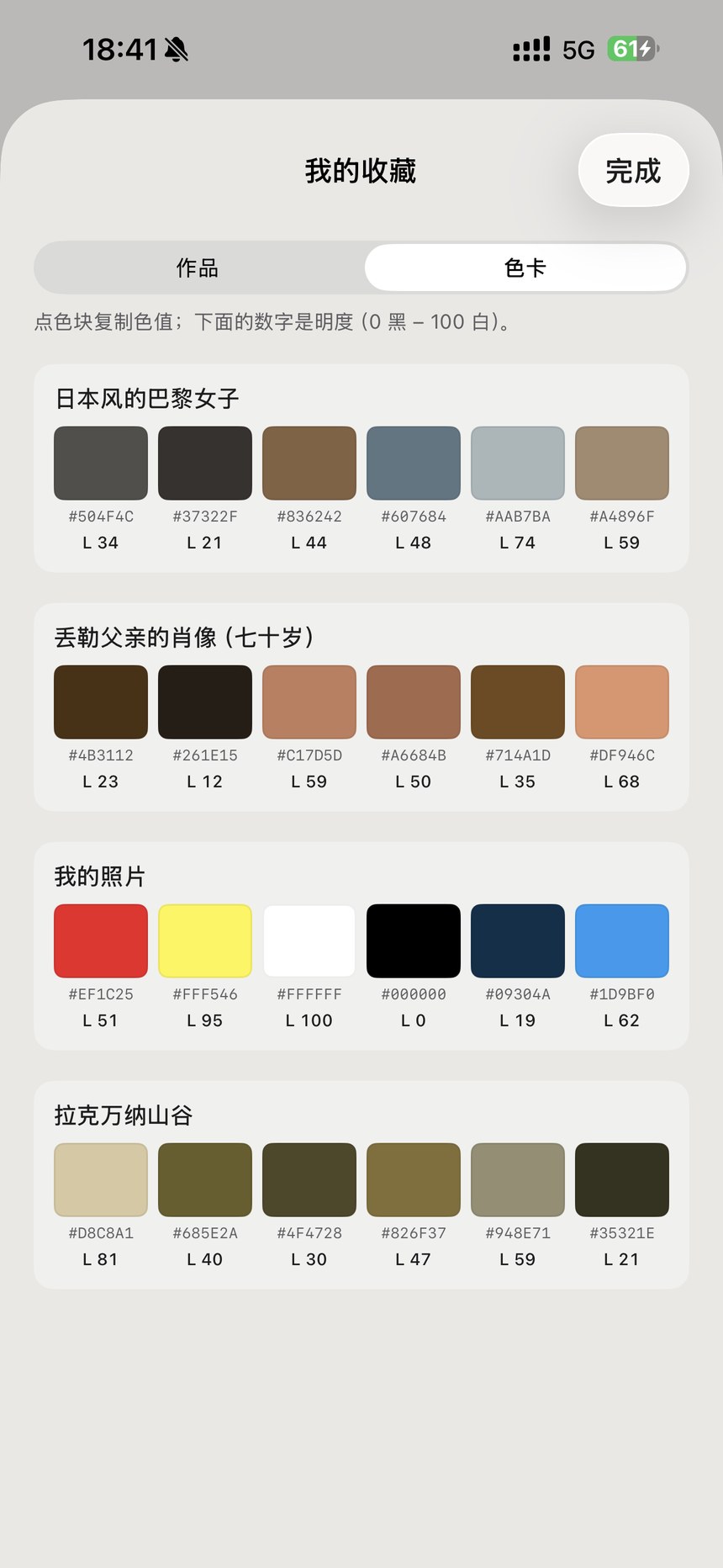
  2. Switch between Artworks and Palettes. A palette extracts six main colors from a work or your own photo.
  3. Each swatch shows a color code and value. Tap a swatch to copy its code for another painting app.

Palette value runs from 0 (black) to 100 (white), for example L 34. Model value runs from 1 (lightest) to 9 (darkest); the two scales are different.

Save artworks & six-color palettes · Figure 23 — Chinese App interfaceEnlarge screenshot ↗
Save artworks & six-color palettes · Figure 23
Save artworks & six-color palettes · Figure 24 — Chinese App interfaceEnlarge screenshot ↗
Save artworks & six-color palettes · Figure 24

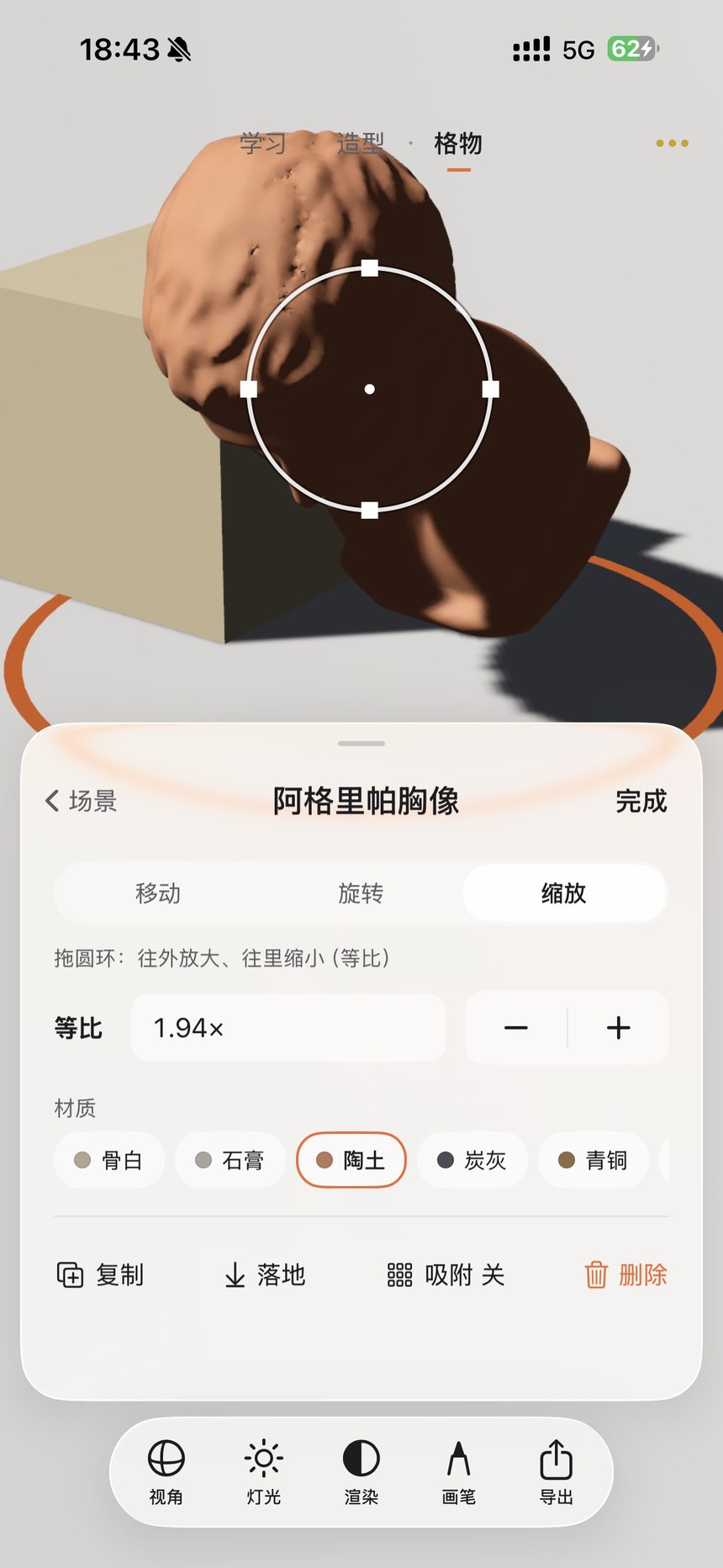
Combine plaster casts, geometric forms and still-life objects to study composition and cast shadows.

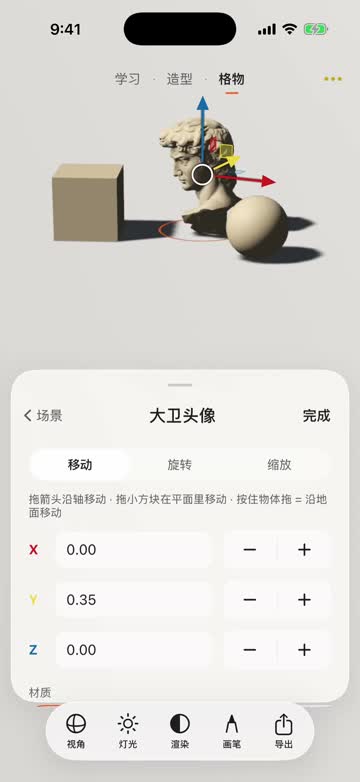
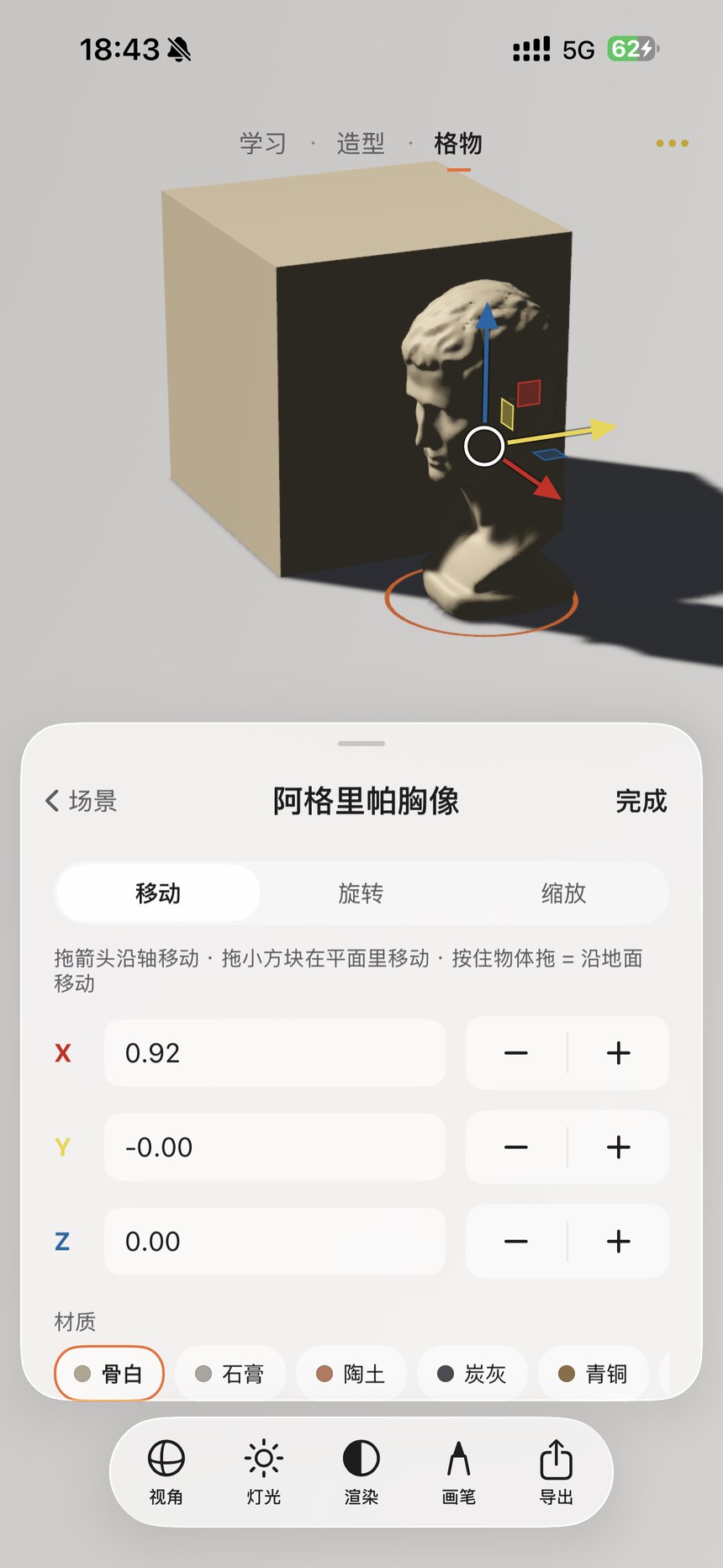
  1. Open Workshop and add models from the scene panel. A scene holds up to ten objects. Tap an object to select it.
  2. Choose Move, Rotate or Scale. Drag an axis arrow, a plane handle, or the object along the ground; use X, Y and Z fields for precise positioning.
  3. Drag the scale ring to resize uniformly and set each object’s material. Duplicate creates a copy, Ground places it on the floor, Snap aligns movement to the grid, and Delete removes it.

Establish sizes and depth with simple shapes before adding more complex objects.

Workshop: arrange up to ten objects — recorded App demonstration
Recorded in the App · click to play · Chinese interface · David → Bronze
Workshop: arrange up to ten objects · Figure 25 — Chinese App interfaceEnlarge screenshot ↗
Workshop: arrange up to ten objects · Figure 25
Workshop: arrange up to ten objects · Figure 26 — Chinese App interfaceEnlarge screenshot ↗
Workshop: arrange up to ten objects · Figure 26

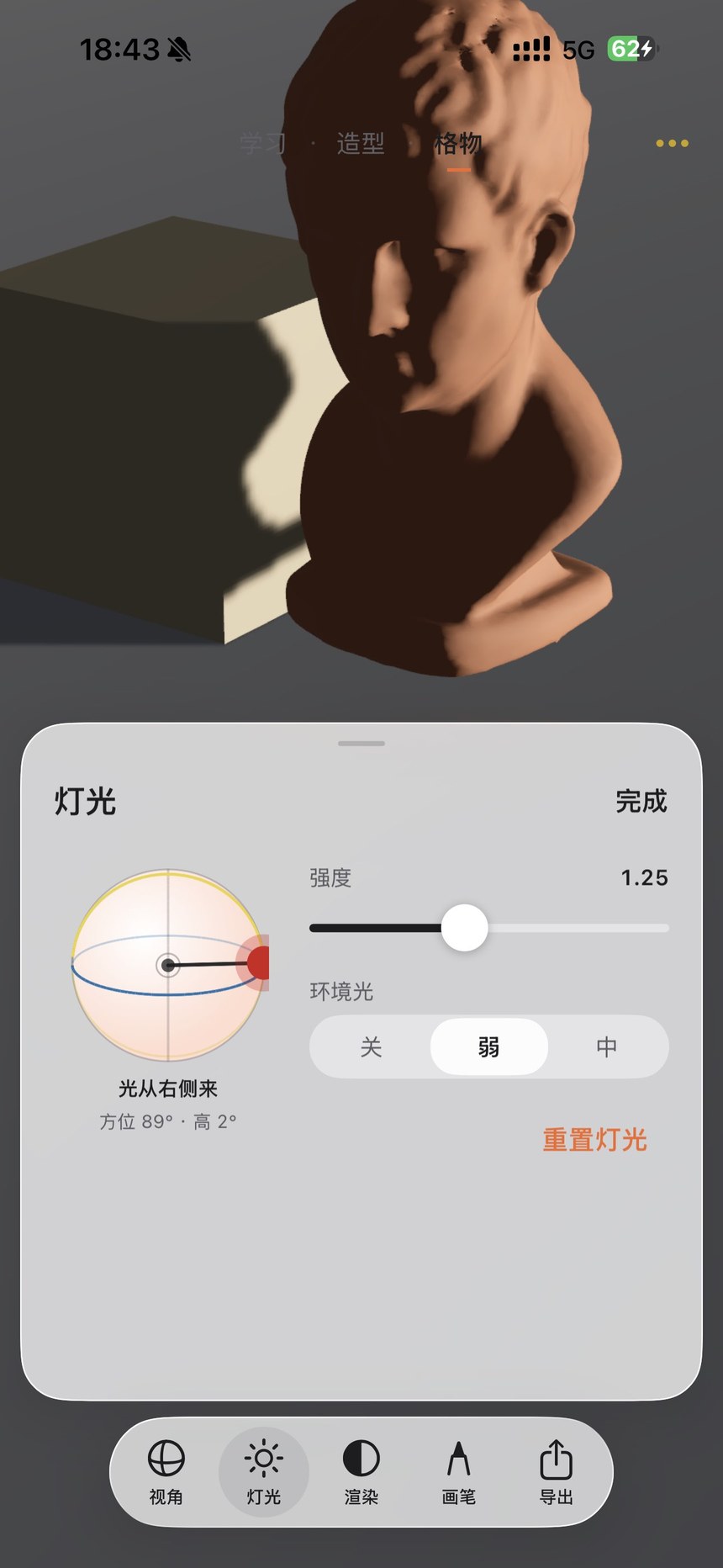
See how one light affects several objects and how their shadows interact.

  1. Open Lighting in Workshop and drag the red point on the sphere to move the main light.
  2. Adjust intensity and read the direction and angle shown in the panel.
  3. Choose Off, Low or Medium ambient light. Use Reset Lighting to return to the default setup.

Less ambient light produces deeper shadows. Change one setting at a time to see its effect clearly.

Scene lighting & ambient light · Figure 27 — Chinese App interfaceEnlarge screenshot ↗
Scene lighting & ambient light · Figure 27

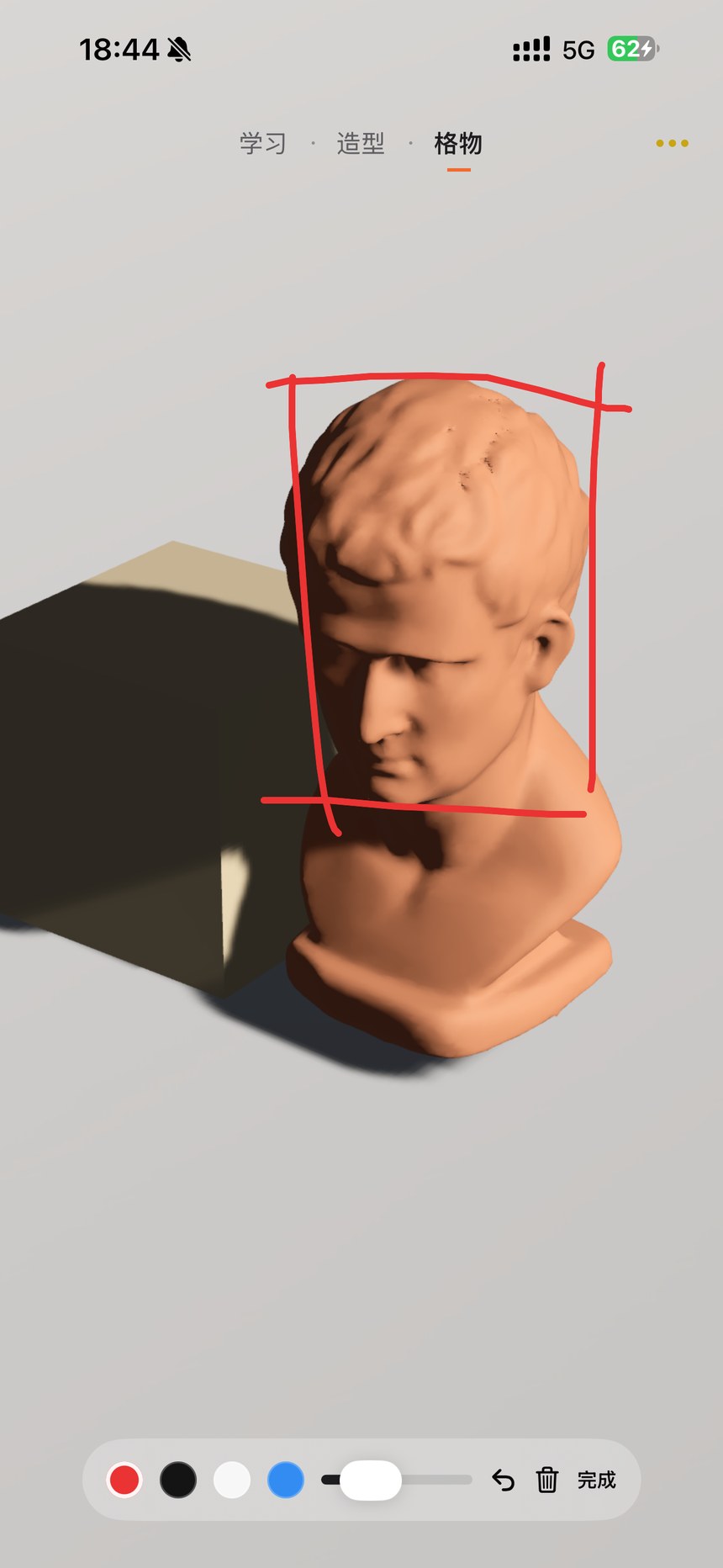
Draw guides over the arrangement and keep your combination of objects, lights and materials.

  1. Tap the Workshop brush, choose red, black, white or blue, set the width and draw a frame or guide lines.
  2. Use undo or clear to revise your marks, then tap Done.
  3. The scene is saved locally for your next session. The scene library in the more menu also offers New, Presets, Save and Load.

Before starting a new arrangement, save any combination you want to revisit through the scene library.

Sketch a composition frame & save the scene · Figure 28 — Chinese App interfaceEnlarge screenshot ↗
Sketch a composition frame & save the scene · Figure 28

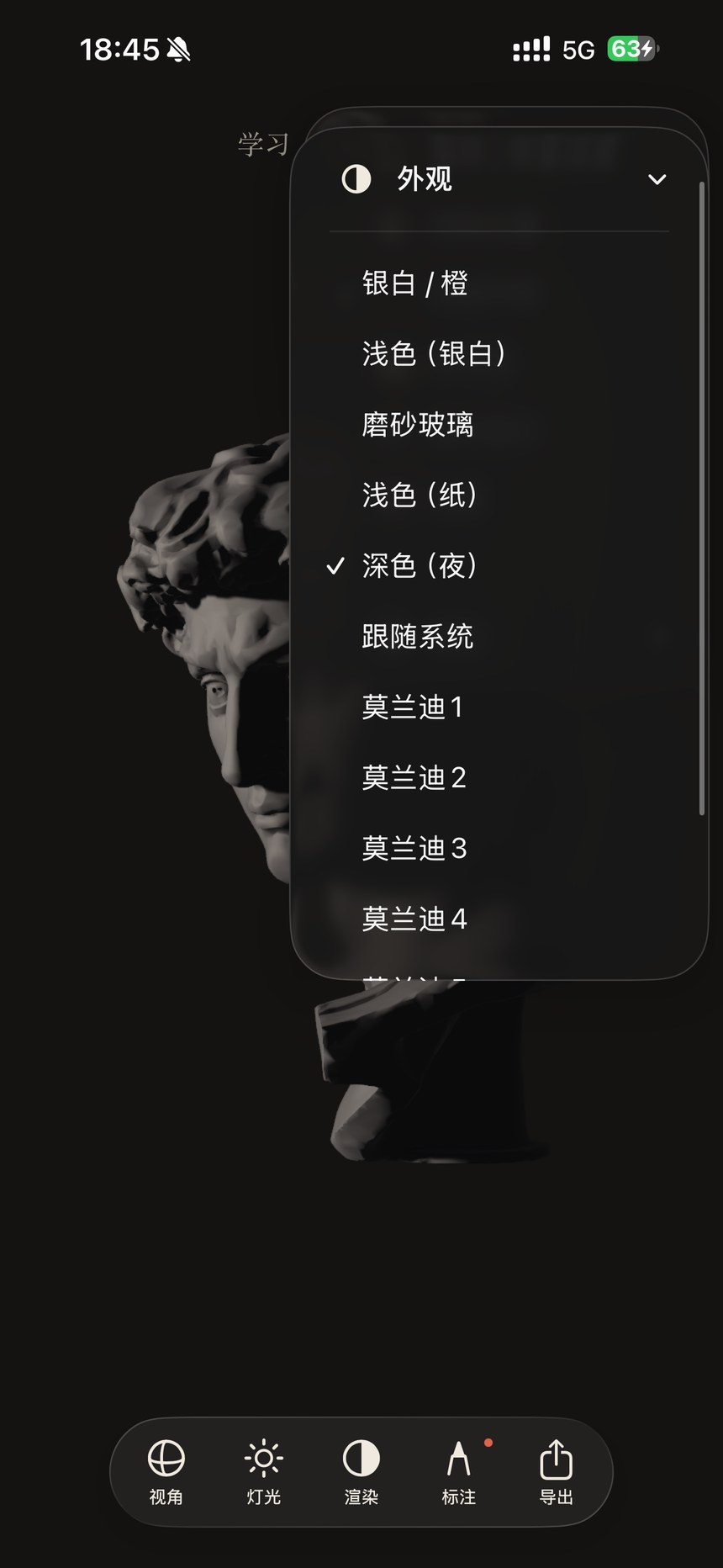
Adapt the interface to your viewing environment and find help for the controls.

  1. Open the three-dot menu, expand Appearance and choose silver/orange, light, paper, frosted glass, dark or a muted palette.
  2. Choose Follow System to match the device’s light or dark mode. A checkmark identifies the current theme.
  3. Use the more menu to open control hints, switch language or enter Settings.

This guide is available in Chinese and English. Manual screenshots show the Chinese interface; recordings follow the guide language.

Appearance, language & control hints · Figure 29 — Chinese App interfaceEnlarge screenshot ↗
Appearance, language & control hints · Figure 29

Model study runs on your device; online learning services and artwork originals have separate requirements.

  1. Use iOS / iPadOS 18 or later. Form and Workshop display and render models locally and can be used offline.
  2. If an older device slows down, switch to Normal rendering, choose a simpler model or reduce the number of scene objects.
  3. Learning progress is saved locally by default. Account sync is offered when its service is configured and available; sign in to the same account to sync progress. Related controls are hidden when the backend is not configured.
  4. Sign-in, progress sync, learning-content updates and high-resolution artwork downloads require internet access. 4K originals also require sign-in and the relevant membership entitlement, and are not available for every work.

2K / 4K model-reference export and high-resolution artwork-original downloads are separate features; see their respective topics.

View original image ↗